


Noise suppression aims to filter background sounds and clarify your voice during calls, but it can sometimes cut off or muff your speech if the algorithms are too aggressive or misinterpret parts of your voice as noise. This often happens in noisy environments or when settings aren’t optimized for your surroundings. If you want to learn how to prevent voice cut-offs and improve call quality, keep exploring these tips and solutions.
Key Takeaways
- Over-aggressive noise suppression may mistakenly mute or cut off parts of your voice during calls.
- Background sounds like wind or typing can confuse algorithms, leading to unintended voice filtering.
- Improper microphone sensitivity or gain settings can cause the system to misinterpret speech as noise.
- Software bugs or outdated app versions can disrupt normal noise suppression, resulting in voice cut-offs.
- Balancing noise reduction levels and environmental noise can prevent over-filtering and improve call clarity.

Logitech H390 Wired Headset for PC/Laptop, Stereo Headphones with Noise Cancelling Microphone, USB-A, in-Line Controls, Works with Chromebook – Black
- Digital Stereo Sound: Enhanced digital audio for various uses
- Rotating Noise Canceling Microphone: Reduces background noise for clear calls
- In-line Controls: Adjust volume and mute calls easily
As an affiliate, we earn on qualifying purchases.
As an affiliate, we earn on qualifying purchases.
How Can I Tell If Noise Suppression Is Causing Voice Cut-Offs?

If noise suppression is causing your voice to cut out during calls, you’ll notice that your speech sounds muffled or suddenly drops in volume. One sign is when your voice doesn’t match the ambient background noise, making it seem like your microphone isn’t capturing your words properly. Adjusting the microphone gain might temporarily help, but if your voice still cuts out despite increasing gain, noise suppression could be the culprit. You might also notice that background noise is reduced excessively, even when you speak loudly. These issues suggest that the noise suppression feature is overly aggressive, impacting your microphone’s ability to transmit your voice clearly. Monitoring how your voice sounds against background noise can help you determine if noise suppression is the cause. Additionally, understanding how modern audio technology can influence microphone performance may help you troubleshoot these issues more effectively. Sometimes, automatic noise reduction algorithms can interfere with voice clarity, especially in environments with fluctuating noise levels. Recognizing the settings adjustments available on your device can also assist in fine-tuning the balance between noise suppression and voice transmission. Being aware of sound processing techniques can further aid in optimizing call quality and reducing unintended voice cut-offs. Exploring audio signal processing options might reveal additional ways to customize your sound settings for clearer communication.
Why Does Noise Suppression Sometimes Muffle or Cut Off My Voice?
Have you ever noticed your voice sounding muffled or suddenly cut off during a call? This often happens because noise suppression algorithms mistakenly interpret parts of your voice as background noise. When these algorithms overly aggressive, they limit sounds they believe aren’t part of your speech, which can reduce your voice’s clarity or cause it to cut out entirely. Background noise, like typing or wind, can confuse the system, leading it to filter out or distort your voice. As a result, your listener might struggle to hear you clearly. These issues are especially common in noisy environments, where the system attempts to block out sound but ends up muffling your voice instead. Understanding this helps you see why noise suppression sometimes affects your call quality. Sound recognition technology plays a key role in how these algorithms differentiate between speech and noise, which can sometimes lead to these unintended effects. Additionally, the design of AI-powered noise suppression algorithms varies across platforms, influencing their sensitivity and accuracy, and environmental factors can also impact their performance. Increased system sensitivity may cause the algorithms to be more prone to misidentifying speech as noise. Furthermore, advancements in adaptive filtering aim to improve this balance but are still evolving.
How Do Microphone and Device Settings Affect Noise Filtering?

Your microphone sensitivity settings can impact how well noise is filtered out, making background sounds more or less noticeable. Device noise reduction features also play a key role in shaping call clarity by reducing unwanted sounds. Adjusting these settings properly guarantees you get clearer audio and better noise suppression during calls. Additionally, understanding the compact living environment can help optimize your device placement and reduce ambient noise interference. Proper microphone placement and device configuration are essential for effective noise suppression during calls. Recognizing how digital distractions can influence your focus during calls may also improve your communication effectiveness.
Microphone Sensitivity Settings
Microphone sensitivity settings play a crucial role in how well noise is filtered during calls. If your microphone gain is too high, it picks up more background noise, making it harder for the noise suppression to distinguish your voice. Conversely, if the sensitivity is too low, your voice may sound faint or cut out, especially in noisy environments. Adjusting the microphone gain properly helps balance capturing your voice clearly while minimizing background noise. Many devices let you tweak these settings in audio or device preferences. Experiment with small changes to find the sweet spot where your voice sounds natural and background noise is reduced. Proper sensitivity settings ensure your voice is heard without unwanted sounds interfering. Understanding noise filtering techniques can further improve call clarity by complementing your device adjustments, and exploring microphone calibration can help optimize your setup even more. Additionally, being aware of environmental factors can aid in configuring your microphone settings more effectively.
Device Noise Reduction
Adjusting device and microphone settings directly impacts how effectively noise is filtered during calls. When you enable device noise reduction features, you’re activating audio enhancement tools designed to improve sound clarity. These settings often include background cancellation, which reduces ambient noise and prevents it from overpowering your voice. Properly configured, they help ensure your conversations remain clear, even in noisy environments. However, if these features are too aggressive, they can sometimes cut off parts of your voice or cause audio artifacts. To optimize performance, experiment with your device’s noise reduction options, balancing background cancellation with natural sound. By fine-tuning these settings, you can improve overall call quality and avoid the frustration of voice cut-offs caused by overly aggressive noise suppression.
When Does Noise Suppression Become Too Aggressive?
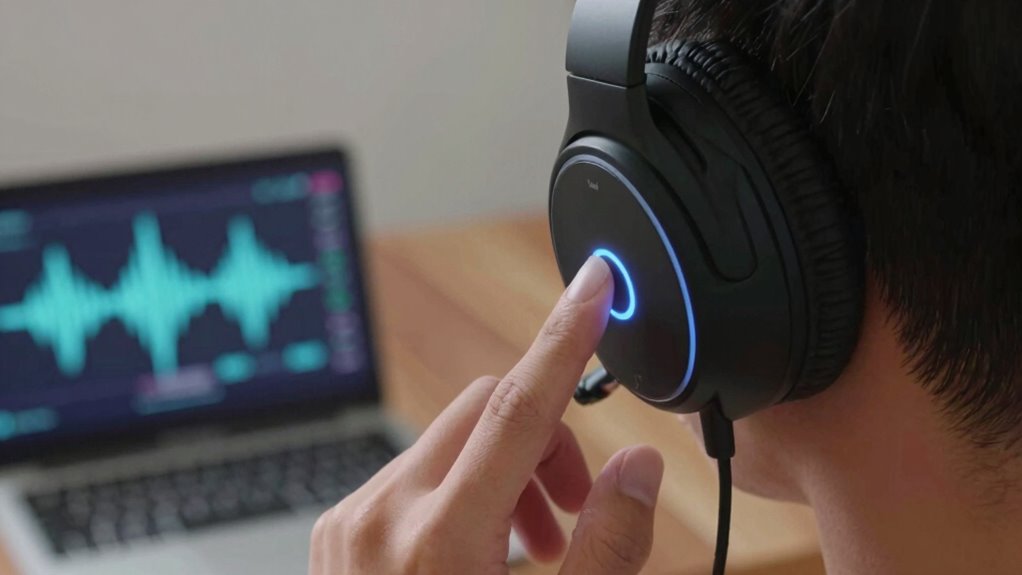
While noise suppression can greatly improve call clarity, it becomes problematic when it starts to overly filter sounds, making voices sound unnatural or robotic. This happens when the system mistakes background noise for speech or when microphone sensitivity is set too high, causing the filter to be overly aggressive. If your microphone picks up too much ambient sound, noise suppression may kick in excessively, cutting off parts of your voice. When this occurs, your words can sound muffled or distorted, reducing overall call quality. It is crucial to find the right balance between reducing background noise and preserving natural voice tones. Adjusting microphone sensitivity or noise suppression settings can help prevent over-filtering, ensuring your voice remains clear and natural during calls. Proper noise management and understanding of sound environment factors can also help in optimizing microphone performance for clearer communication. Additionally, awareness of sound environment factors can assist in tailoring settings to avoid unnecessary voice cut-offs. Recognizing how ambient noise influences noise suppression settings can be key to maintaining natural sound quality. Fine-tuning these settings in response to electronic interference can further improve call clarity.
Signs That Your Call Quality Is Suffering From Over-Filtering

If your call quality feels off, over-filtering might be the culprit. You’ll notice certain signs indicating your audio is suffering from over-processing. First, listen for audio artifacts—unusual sounds or robotic distortions that weren’t there before. Second, if background interference suddenly becomes more noticeable or distorted, it suggests over-filtering is removing helpful noise. Third, your voice might sound muffled or distant, making it hard to understand. Fourth, you might experience brief voice cut-offs where your words get cut off unexpectedly. These issues point to aggressive noise suppression filtering out parts of your voice or essential ambient sounds. Recognizing these signs helps you adjust your settings to improve call clarity without sacrificing natural sound quality. Additionally, understanding how noise suppression works can help you fine-tune your device for better audio performance. Being familiar with audio processing techniques can also guide you in optimizing your call settings for clearer communication. Sometimes, improper filtering settings can be inadvertently causing these issues, so reviewing and adjusting them can make a significant difference.
How to Adjust Your Settings to Prevent Voice Cut-Offs
Voice cut-offs often occur when noise suppression settings are too aggressive, inadvertently muting parts of your speech. To prevent this, start by reducing background noise sensitivity in your device’s settings. Adjust the noise suppression level to a moderate setting that balances noise reduction without silencing your voice. Next, check your microphone gain; if it’s too high, it can cause your voice to be cut off or distorted. Lower the gain slightly to ensure your microphone captures your voice clearly without overloading. Test your settings by making short calls, listening carefully for any cut-offs. Fine-tuning these adjustments will help you find the right balance, minimizing voice cut-offs while maintaining effective noise suppression.
Best Practices for Using Noise Suppression in Different Environments
Adjusting noise suppression settings is just the first step; applying these settings effectively depends on your environment. To optimize call quality, consider these best practices:
- Minimize background noise by choosing a quiet space or closing windows and doors.
- Adjust microphone placement, keeping it close to your mouth to reduce pickup of ambient sounds.
- Use directional microphones when possible to focus on your voice and block background noise.
- Test different noise suppression levels to find a balance that reduces background noise without cutting off your voice.
Alternative Ways to Improve Call Quality Beyond Built-In Noise Suppression

To get better call quality, start by investing in a quality microphone that captures clearer sound. Make sure your network connection is strong and stable to prevent audio dropouts. Also, experiment with your microphone settings to find the most suitable sound balance for your environment. Additionally, controlling background noise and minimizing echo can significantly improve overall call clarity and reduce the need for aggressive noise suppression.
Use Quality Microphones
Investing in a high-quality microphone can markedly enhance call clarity, especially when built-in microphones fall short. A better microphone reduces background noise and captures your voice more accurately. To maximize benefits, consider:
- Choosing a microphone with noise-canceling features to block background noise effectively.
- Opting for a condenser microphone for richer audio quality and clarity.
- Positioning the microphone close to your mouth to improve microphone quality and minimize ambient sounds.
- Using a pop filter to reduce plosive sounds and improve overall sound clarity.
Optimize Network Connection
A strong network connection is essential for clear, uninterrupted calls. Poor connectivity can cause your voice to cut out or become distorted, especially when background noise is present. To optimize your network, verify you’re connected to a stable Wi-Fi network or have a strong cellular signal. Avoid areas with weak reception, which can lead to dropped calls and increased background noise. Additionally, check your device’s microphone gain settings; excessive gain can pick up more background noise, making it harder for the system to distinguish your voice. Reducing microphone gain and improving your network stability work together to minimize noise artifacts and prevent your voice from being cut off. This combination enhances overall call quality, providing a clearer, more consistent communication experience.
Adjust Microphone Settings
Adjusting your microphone settings can substantially improve call quality beyond what built-in noise suppression offers. Proper microphone calibration ensures your device captures your voice clearly without distortion. To enhance sound quality further, consider soundproofing techniques like adding foam panels or sealing gaps around your workspace. Here are four ways to optimize your microphone setup:
- Calibrate your microphone in your device settings to balance input levels.
- Use soundproofing techniques to minimize background noise and echo.
- Adjust gain levels to avoid clipping or muffled audio.
- Position the microphone close to your mouth, ideally 1-2 inches away, for clearer sound.
How to Troubleshoot Noise Suppression Issues on Popular Platforms

Ever wonder why noise suppression isn’t working properly during your calls? First, check your platform’s audio settings. Confirm noise suppression and echo cancellation are enabled, as these features reduce background noise and prevent echo issues. If you’re experiencing cut-offs or muffled voices, try adjusting microphone sensitivity or switching to a different device. On platforms like Zoom or Microsoft Teams, update the app to the latest version, since updates often improve audio processing. Test your microphone in the app’s settings to identify if background noise persists. If problems continue, temporarily disable noise suppression to see if it’s causing the issue. Sometimes, overly aggressive noise suppression can cut off voices, so finding the right balance is key. Troubleshooting these factors often restores clear communication.
What’s Next for Noise Suppression Technology to Make Calls Better?

Advancements in noise suppression technology are poised to transform call quality by making background sounds virtually invisible and voice clearer than ever. Future developments will focus on enhancing audio clarity even in noisy environments. Here’s what to expect:
- Smarter algorithms that adapt instantly to changing background noise levels.
- Improved AI models that distinguish between speech and background sounds more accurately.
- Real-time noise reduction that preserves natural voice tones without cutting off parts of your speech.
- Integration of spatial audio techniques to create a more natural and immersive listening experience.
These innovations aim to reduce instances where background noise interferes with voice transmission, ensuring your calls are clearer and more focused. As technology advances, you’ll enjoy more seamless conversations without the distraction of unwanted sounds.
Frequently Asked Questions
Can I Disable Noise Suppression During Calls?
Yes, you can disable noise suppression during calls. To do this, check your device or app settings, often under audio or microphone options. Proper microphone placement helps reduce ambient noise, so your voice stays clear even with noise suppression off. Keep in mind, disabling it might make background sounds more noticeable, but it can improve voice clarity if noise suppression cuts off parts of your speech.
Does Noise Suppression Affect Audio Quality for Music?
Yes, noise suppression can affect audio fidelity for music. It often reduces background interference, but this can also strip away some of the natural sound quality, making music sound less vibrant or clear. If you notice audio quality issues during music playback, try disabling noise suppression. This allows your device to maintain better sound clarity and full fidelity, delivering a richer listening experience without interference reduction compromising the music’s richness.
Are Some Microphones Better Suited for Noise Suppression?
Some microphones are better suited for noise suppression because of their hardware design and quality. High-quality microphones often feature advanced noise-canceling tech and better hardware construction, which helps capture your voice clearly while minimizing background noise. Cheaper microphones might struggle with noise suppression, leading to cut-offs or muffled sound. So, investing in a mic with strong hardware design and superior quality guarantees clearer calls and more effective noise suppression.
How Does Background Noise Influence Suppression Settings?
Imagine your call as a lively jungle, with ambient noise sneaking in like mischievous monkeys. When background noise is loud, your microphone’s sensitivity kicks into overdrive, prompting noise suppression to act like a vigilant guard dog. Sometimes, it gets overzealous and silences your voice along with the noise. So, high ambient noise levels push suppression settings to the limit, risking your voice getting cut off in the chaos.
Can Software Updates Improve Noise Suppression Accuracy?
Software updates can definitely improve noise suppression accuracy by enhancing the effectiveness of noise suppression algorithms. When you install these updates, you’re giving your device better tools to distinguish between voices and background sounds. This means fewer instances where voices get cut off or muffled. Keep your software current, and you’ll likely notice clearer calls with fewer audio issues, as updates refine how noise suppression works in different environments.
Conclusion
To avoid voice cut-offs, start by checking your device settings and adjusting noise suppression levels. For example, if you notice your voice muffled during calls, lowering the suppression can help. Imagine you’re on a busy street—reducing noise filtering allows your voice to come through clearly without losing important sounds. By fine-tuning these settings, you’ll enjoy clearer conversations and better call quality every time.