

To set up a caption-friendly home entertainment system, start by choosing devices with built-in caption support and compatible HDMI standards. Configure caption settings on your TV and streaming devices, customizing font size, color, and style for clarity. Opt for streaming services that prioritize accessibility, and connect external speakers for better sound. Keep firmware updated and troubleshoot issues promptly. If you keep exploring, you’ll discover all the tips for making your setup truly accessible and seamless.
Key Takeaways
- Choose devices with built-in caption support and ensure firmware is regularly updated for compatibility.
- Access and customize caption settings, including font size, color, and background, for optimal readability.
- Select streaming services that prioritize accessibility and offer customizable caption features.
- Connect external audio devices like Bluetooth speakers to enhance sound quality and improve caption clarity.
- Troubleshoot and update firmware promptly to maintain seamless caption display and overall system performance.
Selecting Devices With Built-In Caption Support
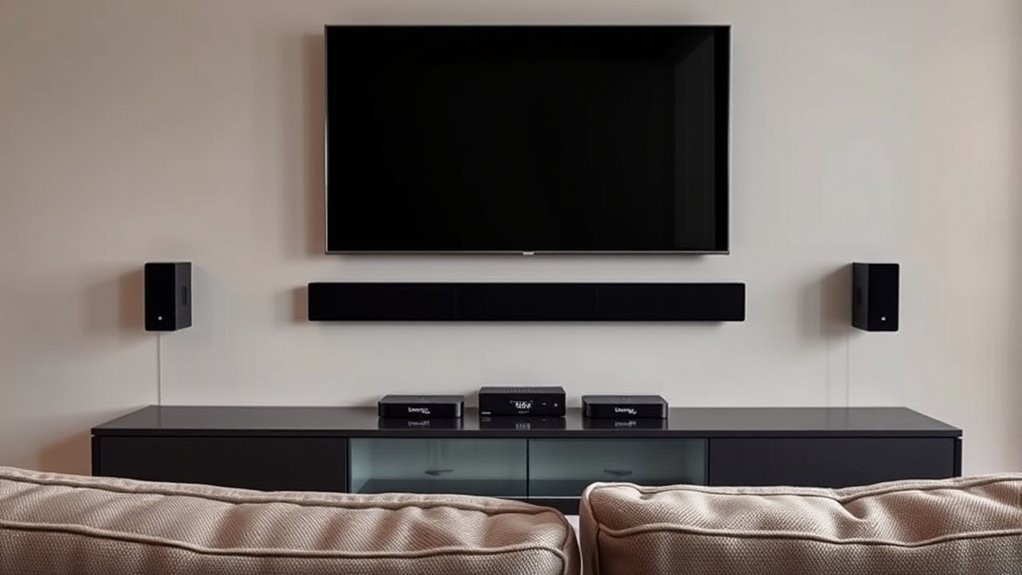
When choosing devices for your home entertainment system, it’s vital to prioritize those that have built-in caption support. This helps guarantee you can easily turn captions on without extra equipment. Look for devices that understand common caption terminology, making it easier to navigate settings. Devices that meet accessibility standards are designed to accommodate users with hearing impairments, providing reliable caption options. Many modern streaming devices, smart TVs, and Blu-ray players include integrated caption features, so verify these options before purchasing. Ensuring your device supports captioning at the hardware level is key to a seamless experience. Understanding caption terminology and compatibility can prevent frustration and ensure you enjoy content with captions activated effortlessly. Prioritizing built-in caption support is an essential step toward a truly accessible home entertainment setup.
Ensuring Compatibility Between Your TV and Streaming Devices
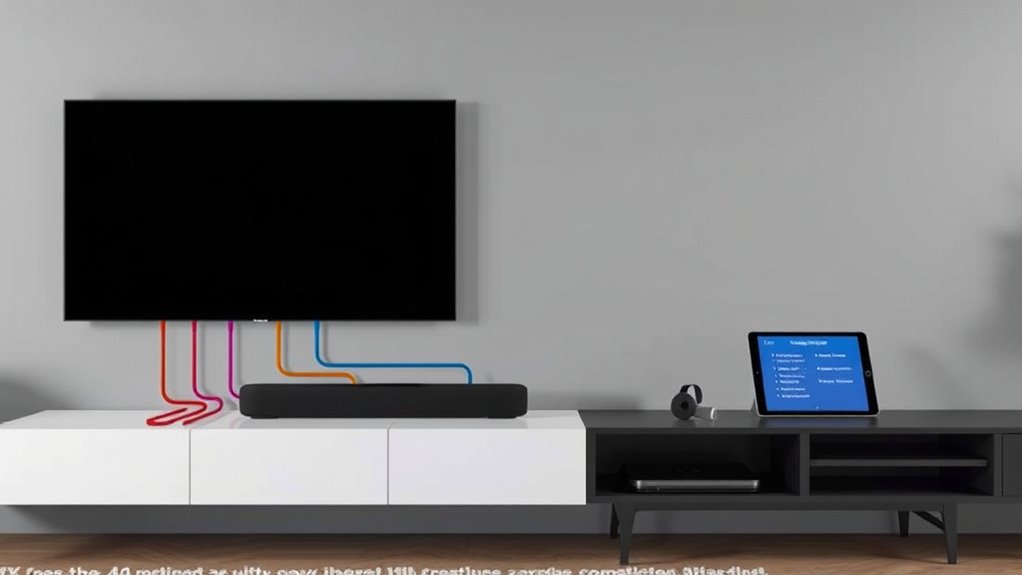
To guarantee your TV and streaming devices work seamlessly together, it’s important to verify their compatibility before making a purchase or setup. Check that both devices support the same HDMI standards, such as HDMI 2.0 or HDMI 2.1, to ensure superior video and audio quality. This helps prevent issues like lag, poor resolution, or limited audio features. Additionally, consider audio calibration options; some devices offer settings to fine-tune sound output, which can improve clarity and support caption functions. Confirm that your TV’s firmware is up to date, as updates often enhance compatibility with newer streaming devices. Ensuring the refresh rates are aligned can also improve visual performance and reduce motion blur during fast-paced content. By ensuring these specifications align, you’ll set a solid foundation for a caption‑friendly, high-quality entertainment experience.
Configuring Caption Settings on Your TV and Devices
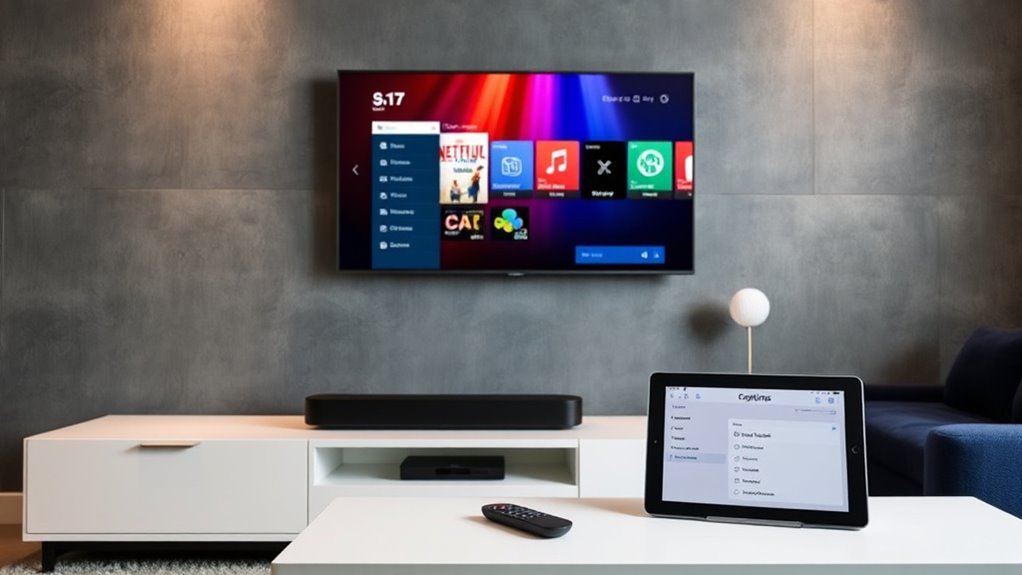
Once you’ve confirmed your devices support caption features, the next step is to configure the caption settings on your TV and streaming devices. This allows you to tailor caption customization to match your user preferences. Here’s what you should do:
- Access the accessibility or caption menu on each device, usually found in settings.
- Turn captions on and select your preferred display style, such as font size, color, or background.
- Test different options to find the combination that enhances readability and comfort for you.
- Remember that attention in creative practice plays a role in how effectively you can customize and enjoy your captions, as focused engagement helps you notice and adjust details more precisely.
Adjusting these settings ensures captions are clear and customized to your liking, making your viewing experience more enjoyable and accessible. Take the time to fine-tune each device for consistent caption display across your entertainment system.
Choosing Streaming Services With Reliable Caption Options

Not all streaming services offer consistent or reliable caption options, so it’s essential to select platforms that prioritize accessibility. Look for services that provide high caption quality, ensuring text is clear and easy to read. Check whether they support caption customization features, such as font size, style, and background color, so you can tailor captions to your needs. Reliable caption options improve your viewing experience by making content more accessible and enjoyable. Before subscribing, explore the service’s accessibility settings and test their caption features on your devices. Choosing a platform with dependable caption support helps prevent frustration and ensures you can fully enjoy movies and shows. Prioritizing caption quality and customization makes your home entertainment system more inclusive and user-friendly. Additionally, reviewing surf hazards in your area can help you stay safe while enjoying outdoor activities.
Connecting External Speakers and Subtitles for Better Accessibility
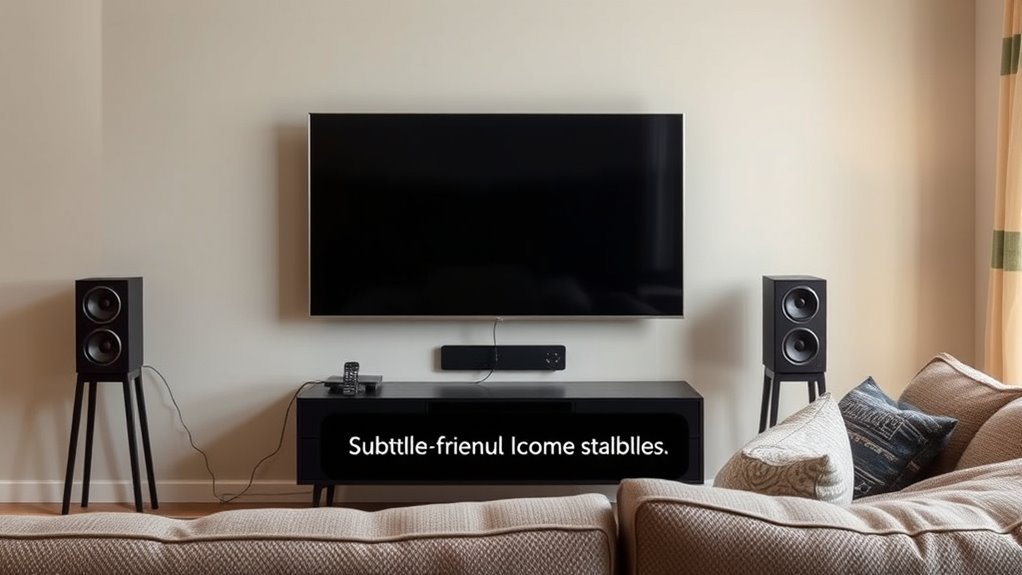
Connecting external speakers and subtitles can considerably enhance your home entertainment experience by making audio and visual content more accessible. To improve sound, consider these steps:
- Set up wireless speaker setups for flexible placement and better sound distribution.
- Explore caption customization options on your device to adjust font size, color, or background for clearer readability.
- Connect external speakers via Bluetooth or Wi-Fi, ensuring compatibility with your system, to enjoy richer audio without cluttering your space.
- Utilizing audio tuning features can further optimize sound quality and ensure your setup delivers the best listening experience.
Using wireless setups reduces cable clutter and allows you to position speakers for ideal sound. Meanwhile, customizing captions helps cater to your visual preferences, making content easier to follow. Both steps notably boost accessibility, making your viewing more enjoyable and inclusive.
Using Caption-Ready Remote Controls and Accessories

Choosing the right remote controls guarantees you can easily access caption features without hassle. Look for compatibility with your devices and simple access to caption options. Additionally, accessories like caption magnifiers or noise-reducing headsets can enhance clarity and improve your viewing experience. Incorporating handcrafted wooden products into your home entertainment setup can also provide a stylish and sustainable touch.
Remote Compatibility Tips
To guarantee your home entertainment system is accessible for caption users, it’s vital to select remote controls that are caption-friendly. First, consider a universal remote with large, clearly labeled buttons to simplify navigation. Second, look for remotes that support voice command features—these allow you to control captions effortlessly without needing to find specific buttons. Third, ensure the remote is compatible with your devices and caption services, reducing frustration and enhancing accessibility. A universal remote can consolidate controls, making it easier to manage your entertainment system. Voice command integration further simplifies access, especially for those with limited mobility. Additionally, understanding remote compatibility ensures your chosen remote will work seamlessly with your existing setup. By choosing the right remote, you ensure captions are always within reach, making your viewing experience more inclusive and enjoyable.
Accessory Options for Clarity
Using caption-ready remote controls and accessories can considerably enhance your viewing clarity and accessibility. These tools ensure you can easily turn captions on or off and customize the caption display to suit your preferences. Accessibility accessories, such as captioning remotes or external captioning devices, simplify managing captions without traversing complex menus. Many remote controls now feature dedicated caption buttons, making it quick to activate or adjust the caption display. Additionally, some accessories allow for better positioning and size adjustments of captions, improving readability. Investing in these options helps create a seamless viewing experience, guaranteeing captions are clear and accessible whenever you need them. By choosing compatible accessories, you enhance both convenience and overall accessibility in your home entertainment setup.
Troubleshooting Common Caption Display Issues

If captions aren’t displaying properly, start by checking your device’s caption settings to guarantee they’re enabled. Next, make sure your firmware is up to date, as updates can fix compatibility issues. Finally, verify that your display supports captions and is compatible with your devices to avoid any viewing problems. Additionally, confirming that your device or system supports preppy dog names and related features can help ensure a smooth viewing experience.
Check Caption Settings
Sometimes caption display issues stem from the settings on your device, so it’s important to double-check them first. Start by verifying the caption syntax to guarantee captions are enabled correctly. Next, review the caption styling to match your preferences, such as font size, color, and background. Finally, consider these steps:
- Access your device’s accessibility or caption settings.
- Make sure captions are turned on and set to display during playback.
- Adjust caption styling for clarity and comfort, ensuring they don’t obscure important visuals.
Additionally, being aware of juice cleansing benefits and side effects can help you understand how dietary habits might influence your overall health and device usage comfort.
Update Device Firmware
Updating your device firmware can resolve many caption display issues by guaranteeing your system runs the latest software with improved compatibility and bug fixes. Firmware updates often enhance voice recognition features, making captioning more accurate, and support caption customization options. To update, check your device manufacturer’s website or settings menu for the latest firmware version. Keep in mind that updating may also improve overall system stability, reducing glitches during playback. Regular updates ensure your system adapts to new content formats and accessibility features.
| Step | Action |
|---|---|
| 1 | Visit your device’s support page |
| 2 | Download the latest firmware version |
| 3 | Follow on-screen instructions to install |
| 4 | Restart your device after update |
| 5 | Verify caption display and voice recognition |
Adjust Display Compatibility
When captions don’t display correctly, adjusting display compatibility settings can often resolve the issue. First, check your room lighting; dim lighting reduces glare, making captions easier to see. Next, perform an audio calibration to ensure your sound system isn’t interfering with visual cues. Finally, tweak your display settings by:
- Ensuring your TV or monitor supports the caption formats you’re using.
- Adjusting the caption size and position for better visibility.
- Updating your device firmware to improve compatibility.
- Refer to content formats supported by your device to confirm compatibility with caption files.
These simple steps improve caption display, especially if your room lighting fluctuates or your audio calibration isn’t ideal. Properly adjusting these settings ensures captions are clear and synchronized, creating a more enjoyable viewing experience.
Maintaining and Updating Your System for Optimal Caption Functionality
To guarantee your home entertainment system consistently delivers accurate and reliable captions, regular maintenance and updates are essential. Start by performing audio calibration to ensure sound levels and quality support clear captioning. Check that your system’s firmware and software are up to date, as updates often include improvements for caption accuracy and compatibility. Adjust user accessibility preferences periodically to match any changes in your needs or those of other viewers. This includes reviewing caption styles, font size, and color for ideal visibility. Regularly testing caption functionality during different types of content helps identify and resolve issues early. By staying proactive with these updates and adjustments, you ensure your system remains caption-friendly and delivers a seamless viewing experience.
Frequently Asked Questions
How Do I Customize Caption Appearance for Better Readability?
To customize caption appearance for better readability, start by exploring your device’s caption settings. You can adjust font customization to choose a clear, legible font size and style. Additionally, make color adjustments to increase contrast—preferably light text on a dark background or vice versa. These tweaks help you read captions easily without straining your eyes, ensuring a comfortable viewing experience tailored to your preferences.
Can I Use Captions With Non-Smart TVS Easily?
You can use captions with non-smart TVs, but it depends on device limitations. Many non-smart TVs don’t have built-in caption compatibility, so you might need external devices like streaming sticks or DVD players with caption support. Check your device’s manual or settings to see if captions are supported. If not, using a compatible external device can make it easier to enable captions and improve your viewing experience.
Are There Privacy Concerns When Enabling Captions?
When you enable captions, there are some privacy risks to contemplate. Your device may collect data to improve caption accuracy, which could involve data collection practices. While these risks are generally minimal, it’s wise to review privacy settings and understand how your information is used. Stay informed about the app or device’s privacy policies to ensure you’re comfortable with any potential data collection involved in captioning features.
How Do I Update Caption Software on My Devices?
To update caption software on your devices, start by checking for updates in the app store or device settings. Make certain your caption file formats are compatible with the latest software version. You should also verify caption synchronization after updating to prevent delays or misalignment. Regularly updating keeps your caption features current, improves accuracy, and enhances your viewing experience, making sure your captions stay synchronized and properly formatted across your devices.
What Are the Best Practices for Captioning in Multi-User Households?
In multi-user households, you should prioritize caption customization and respect individual preferences. Encourage everyone to set their preferred caption settings on devices, ensuring easy access to adjust as needed. Use platforms that support multiple profiles with personalized caption options. Regularly update caption software to improve accuracy. Communicate openly about each person’s needs, creating a comfortable viewing environment where everyone’s caption preferences are seamlessly accommodated.
Conclusion
By thoughtfully setting up your home entertainment system, you create a welcoming space where everyone can enjoy the show. When you pay attention to device compatibility and fine-tune your caption settings, you’re gently opening doors to clearer communication and shared experiences. With a few simple adjustments, you’ll find your system becomes more accommodating, turning your viewing area into a cozy haven where accessibility feels natural and effortless. Enjoy your enhanced, inclusive entertainment journey!