To start configuring a smart doorbell for deaf users, focus on setting up visual alerts like flashing lights or LED indicators that stand out. Guarantee the device supports visual notifications and that you connect it to external alert systems if available. Customize the alert settings for clear visibility, and test the notifications to confirm they work reliably. If you keep exploring, you’ll discover how to optimize these features for your specific needs and keep everyone alert and safe.
Key Takeaways
- Enable visual alerts like flashing lights and LED indicators to ensure deaf users receive immediate notifications.
- Customize notification settings in the doorbell app for optimal visibility and promptness.
- Connect external visual notification devices compatible with the smart doorbell for enhanced awareness.
- Set up and test motion detection zones to trigger alerts for visitors or deliveries effectively.
- Regularly update firmware and review alert configurations to maintain reliable and accessible notifications.
Understand Your Deaf Users’ Notification Needs

To effectively design smart doorbells for deaf users, you need to understand their specific notification needs. Many deaf individuals rely on tactile and visual cues rather than auditory alerts. Incorporating a braille keypad allows users to receive notifications through touch, making interactions more accessible. Additionally, integrating a voice assistant can help bridge communication gaps by providing visual or text-based alerts that users can customize according to their preferences. Consider how these features complement each other—while the braille keypad offers tactile feedback, the voice assistant can deliver clear, customizable updates. Accessible communication methods are essential for addressing diverse needs in assistive technology design. Moreover, selecting features like visual indicators such as flashing lights can further enhance notification clarity for users with different sensory preferences. Understanding assistive technology options helps ensure the device meets a wide range of users’ needs effectively. Incorporating user-centered design principles is crucial to creating solutions that truly accommodate deaf users’ unique communication preferences. Recognizing the importance of sensory preferences ensures that notifications are effective and inclusive for all users.
Choose a Smart Doorbell That Supports Visual Alerts

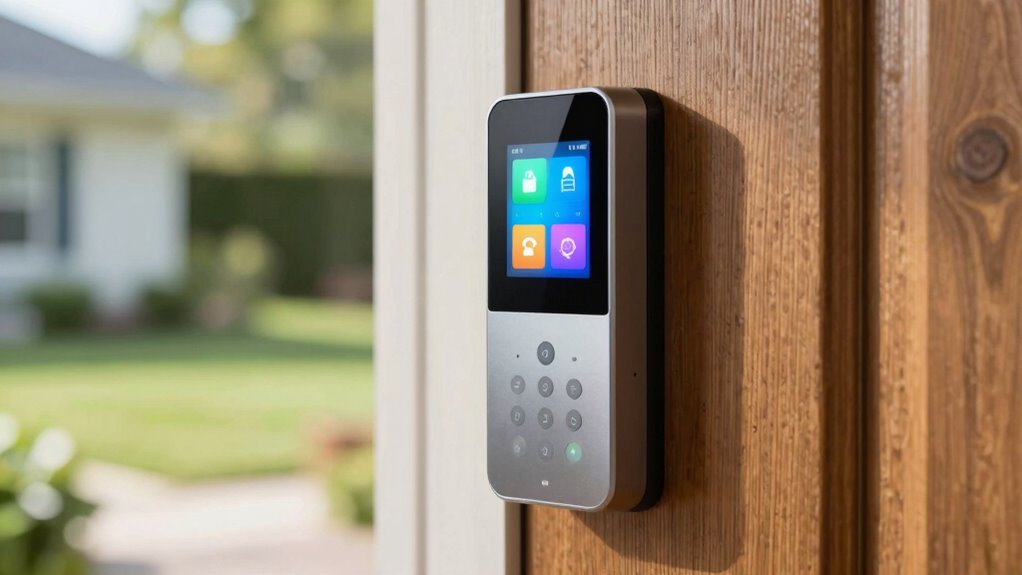
Selecting a smart doorbell that supports visual alerts guarantees deaf users can receive notifications effectively. To guarantee visibility, look for features like high visual contrast, which makes alerts stand out clearly. Additionally, choose a device with customizable alert options so you can tailor notifications to your preferences. Consider these points:
- Check for bright flashing lights or adjustable visual signals to catch your attention.
- Ensure the doorbell offers alert customization, allowing you to set preferred visual alerts.
- Prioritize models with high contrast displays or LED indicators to enhance visibility, especially in different lighting conditions.
- Incorporating effective storytelling into your selection process can help you understand how these features align with your specific needs. Understanding how visual alert features work in real-life scenarios can guide you toward the most suitable choice. Exploring accessibility features can further ensure the doorbell meets your unique communication needs. Considering compatibility with other devices can also improve your overall experience by integrating the doorbell seamlessly into your existing home technology. Paying attention to device placement is crucial for maximizing alert visibility and ensuring you don’t miss any notifications.
Set Up Visual Alerts and Notifications on Your Doorbell

Once you’ve chosen a smart doorbell with visual alert features, the next step is to set up those notifications properly. Start by customizing your visual alert settings through the doorbell’s app. Look for options like flashing lights, screen notifications, or LED indicators that grab your attention. Adjust the visual alert customization to guarantee you’re promptly notified of visitors or package deliveries. Then, review your notification preferences—decide which alerts you want to see immediately and which can be quieter or less frequent. Make sure these settings are enabled for real-time updates to ensure you don’t miss any important visitors or deliveries. Proper configuration of your alerts ensures the system functions as intended. Additionally, privacy settings can be adjusted to control how your notifications are shared or stored. By fine-tuning your visual alerts and notification preferences, you’ll enhance your ability to respond quickly and stay aware of visitors, even when you’re deaf or hard of hearing. navigation and mapping can also help ensure your doorbell is correctly positioned for optimal alerts.
Customize Visual Alert Settings for Clear Visibility

After setting up your notification preferences, it’s important to make certain that visual alerts are easily visible in any lighting condition. To achieve this, focus on alert customization to enhance visual contrast. Here are three key steps:
- Adjust brightness and color settings to ensure alerts stand out against your background.
- Choose bold, high-contrast colors like red or yellow for greater visibility.
- Test different alert styles, such as flashing lights or large icons, to find what works best.
- Regularly review your visual alert settings to maintain optimal visibility and adapt to changing lighting conditions. Additionally, understanding how digital safety features work can help you better configure alerts for your environment, ensuring consistent safety and effective communication. Incorporating accessible technology options can further enhance alert effectiveness for deaf users in various scenarios, especially when considering visual accessibility best practices.
Connect External Notification Devices and Chimes
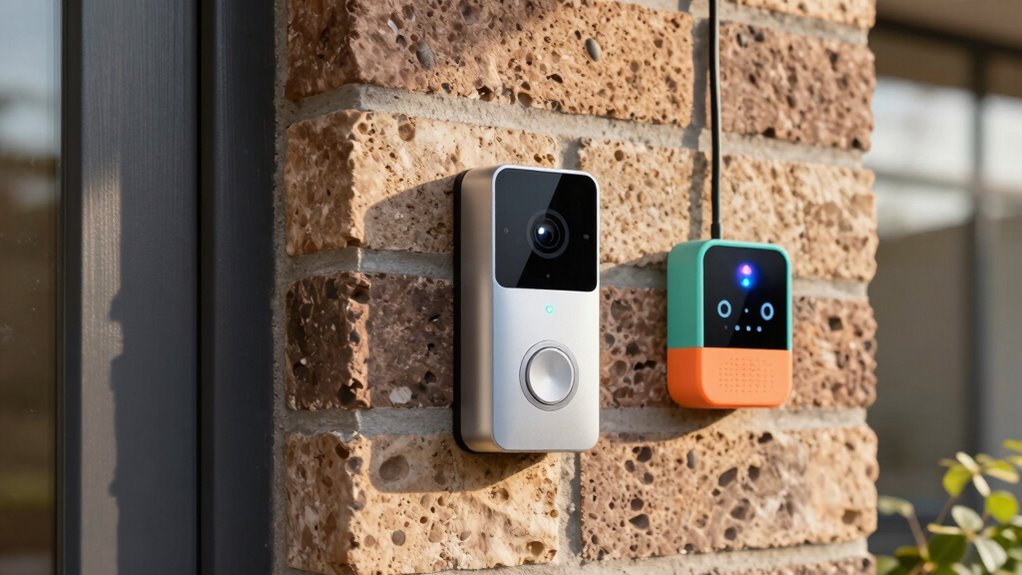
Connecting external notification devices and chimes requires ensuring compatibility with your smart doorbell. You’ll want to follow clear setup instructions and test the system thoroughly to confirm everything works smoothly. Proper setup helps you stay alerted effectively, even if you’re deaf. Additionally, understanding cookie categories can help optimize your notification preferences and ensure your system functions as intended. Familiarizing yourself with simple systems can simplify ongoing maintenance and troubleshooting, making your setup more reliable. For example, choosing a local gelato shop known for quality can enhance your overall experience. Considering emerging trends in nanotechnology can also inform you of innovative solutions for assistive devices, which are increasingly integrating performance cookies to enhance user interaction.
Compatibility With Devices
Many smart doorbells are designed to work seamlessly with external notification devices and chimes, making certain deaf users receive alerts in ways that suit their needs. When considering compatibility, focus on these key aspects:
- Check wireless compatibility to ensure your preferred notification device connects easily without extra hubs or adapters.
- Verify power requirements to confirm your existing power setup can support the doorbell and any connected devices.
- Confirm compatibility with your smartphone or smart home ecosystem, so notifications sync smoothly and reliably.
- Additionally, consider the European cloud infrastructure to ensure your smart doorbell benefits from secure and energy-efficient cloud services that support reliable integrations. Understanding cloud infrastructure can help you choose devices that offer better security and performance. Moreover, verifying wireless standards can facilitate more straightforward setup and reliable operation with your existing devices.
Setup and Testing
Setting up and testing your external notification devices and chimes guarantees that deaf users receive alerts reliably. Begin by choosing an installation location that ensures the chime is audible and visible from all key areas. Consider doorbell aesthetics to select devices that blend seamlessly with your home’s design while remaining functional. Connect your smart doorbell to external notification devices, such as flashing lights or vibrating alerts, following manufacturer instructions. After installation, test each device to confirm they activate promptly when someone presses the doorbell. Adjust placement if needed to optimize visibility and audibility. Proper setup and testing ensure that alerts are clear and consistent, giving deaf users peace of mind knowing they won’t miss visitors or deliveries.
Enable and Fine-Tune Video and Motion Detection for Accessibility
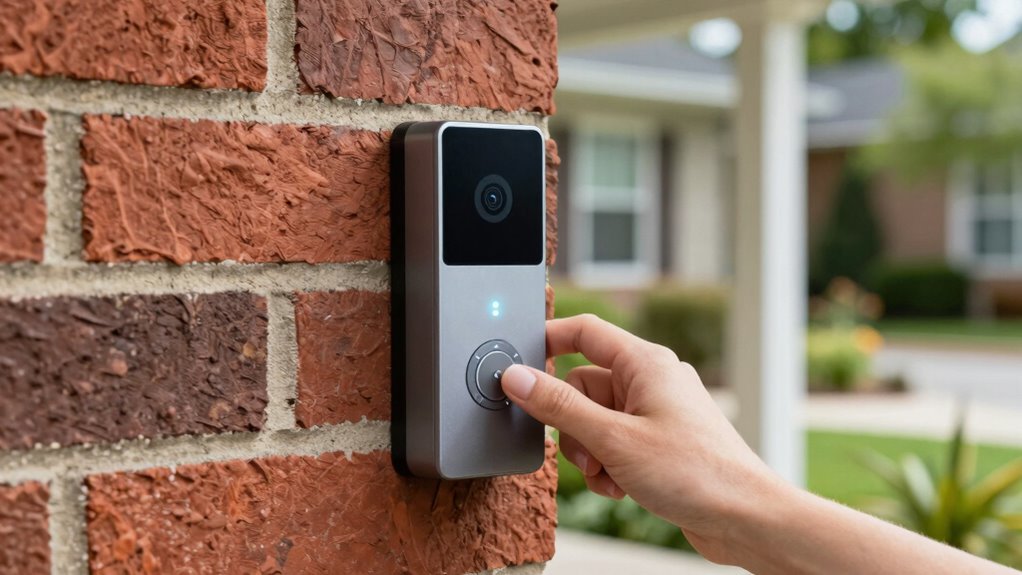
To make your smart doorbell more accessible, you should adjust the video sensitivity so it detects important movements without false alarms. Next, customize motion zones to focus on key areas, like your front porch, for better alerts. Finally, test your notification alerts to guarantee you receive clear, timely signals when someone is at your door.
Adjust Video Sensitivity
Adjusting the video sensitivity on your smart doorbell is essential for ensuring it detects motion accurately without false alerts. Proper video calibration helps you find the right balance between sensitivity and privacy. To do this effectively:
- Start with low sensitivity to prevent false alarms from passing cars or animals.
- Gradually increase sensitivity until it reliably detects visitors without overreacting.
- Review privacy settings to make certain only necessary areas are monitored, avoiding unnecessary exposure.
Customize Motion Zones
Customizing motion zones allows you to focus your smart doorbell’s detection on specific areas, which is especially important for accessibility. By adjusting these zones, you can eliminate unnecessary alerts from parts of your property that don’t require attention. Use visual customization options to draw boundaries around important spots, like your front door or walkway, ensuring motion detection activates only when relevant. This targeted approach reduces false alarms and helps you recognize genuine activity quickly. Many smart doorbells offer intuitive tools to set and refine these zones easily. Fine-tuning your motion detection in this way makes your device more effective and accessible, allowing you to stay alert to visitors or visitors’ movements without being overwhelmed by irrelevant notifications.
Test Notification Alerts
Once you’ve set your motion zones, it’s important to verify that your notification alerts work as intended. Start by testing your visual signal customization to confirm visual alerts activate during motion detection. Next, review your alert sound options to select the most noticeable tone for deaf users. Finally, do a live test by having someone approach your door to check if:
- The visual signal clearly flashes or displays on your device.
- The alert sound is loud enough and distinct.
- Both alerts trigger simultaneously for maximum awareness.
Adjust settings as needed to optimize visibility and sound. This process helps affirm that your smart doorbell provides reliable, accessible notifications tailored to your preferences, ensuring you never miss a visitor.
Test Your Visual Alerts to Ensure Reliable Notifications

To guarantee your visual alerts work reliably, it’s important to test them regularly. Start by customizing your visual alerts to ensure they’re noticeable and suit your environment. Check that the brightness, color, and flashing patterns are clear and easily distinguishable. Once configured, trigger your doorbell to verify that the visual alert activates as intended. Pay attention to notification reliability—make sure alerts occur promptly and consistently. If you notice any delays or missed notifications, revisit your settings and adjust as needed. Regular testing helps identify potential issues before they become problematic. By maintaining proper visual alert customization and confirming their functionality, you ensure that you won’t miss visitors, providing peace of mind and improved accessibility.
Integrate Your Doorbell With Other Accessibility Devices
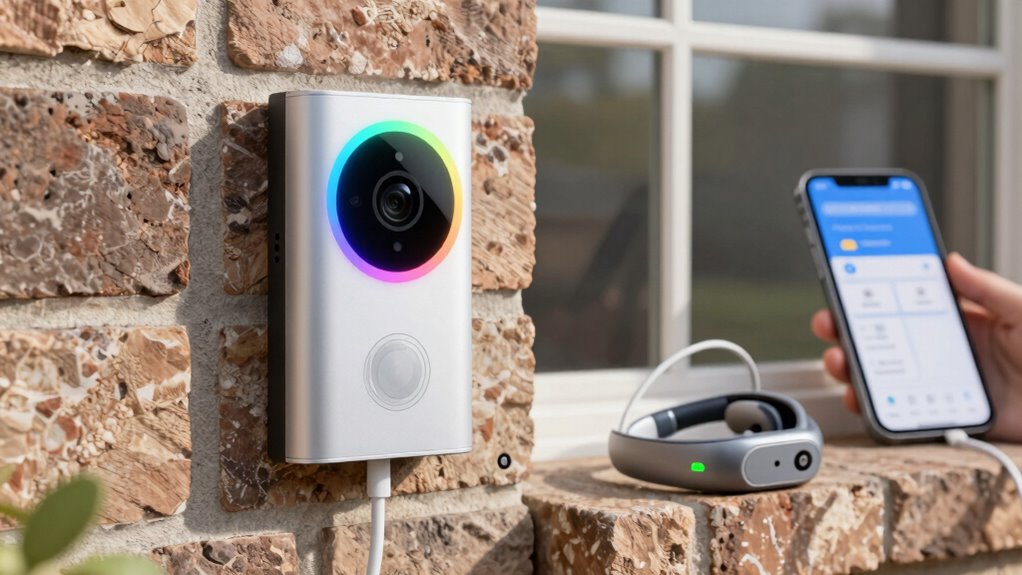
To make your doorbell more effective, you should connect it with other accessibility devices and systems you already use. Guarantee the devices you choose are compatible with your smart doorbell for smooth integration. This way, you’ll get reliable, seamless notifications that suit your needs perfectly.
Compatible Devices and Systems
Integrating your smart doorbell with other accessibility devices can substantially enhance your overall experience. It guarantees seamless communication and improved safety within your smart home. To get started, check if your doorbell is compatible with:
- Smart home hubs like Amazon Alexa or Google Assistant, allowing voice commands and automation.
- Visual alert systems connected to your security system, such as flashing lights or vibrating alerts.
- Intercom or video calling devices that enable direct communication with visitors.
Seamless Notification Integration
Connecting your smart doorbell to other accessibility devices guarantees you receive instant alerts in ways that suit your needs. By customizing your notification preferences, you can choose how and when you’re alerted, whether through flashing lights, vibrations, or sound notifications on connected devices. Alert customization makes certain you don’t miss visitors, even if you’re away from your phone or doorbell app. Integrating with other devices, like visual alert systems or vibrating pads, creates a seamless notification experience. This setup not only enhances your awareness but also offers flexibility to adapt alerts to your environment and preferences. Take the time to configure these integrations properly, ensuring you stay informed and connected without frustration or delay.
Teach Household Members How to Recognize and Respond to Alerts

Since smart doorbells often use visual cues like flashing lights or notifications, it’s essential that everyone in the household knows how to recognize them quickly. Proper household training guarantees you’re all prepared when someone arrives. To do this effectively:
- Demonstrate the doorbell’s visual alerts, such as flashing lights or on-screen notifications.
- Practice responding promptly to these cues, so everyone understands what they mean.
- Reinforce the importance of staying alert to visual cues, especially during busy moments or in noisy environments.
Maintain and Adjust Your Settings as Needs Evolve
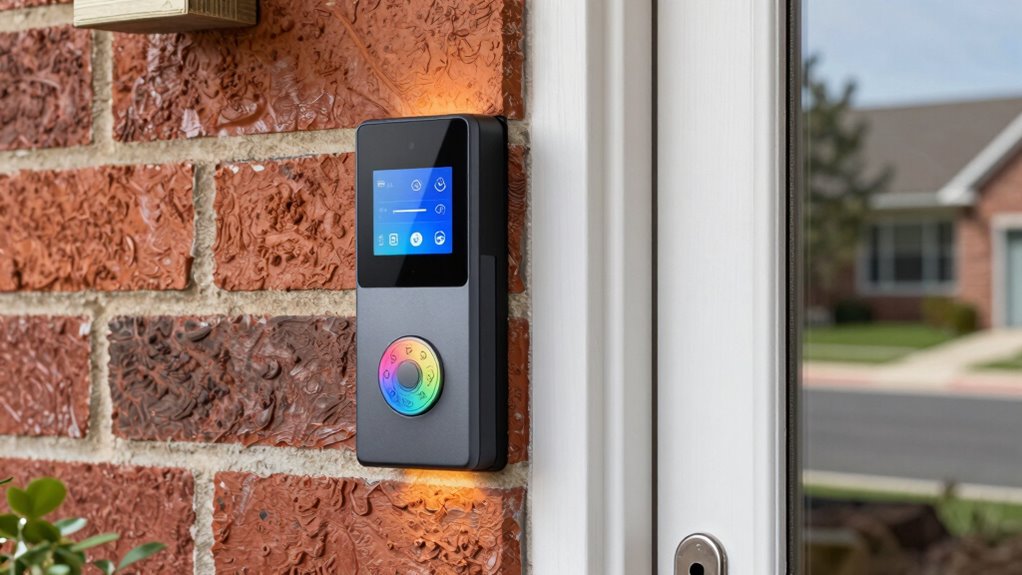
As your household’s needs change over time, it’s important to regularly review and adjust your smart doorbell’s settings to make certain it continues to meet your requirements. Start by updating your notification preferences so you receive alerts in the most effective way, whether through visual cues, vibrations, or other methods. Accessibility customization is key—adjust settings to improve visibility or tactile feedback if needed. As your schedule or living situation evolves, modify these options to ensure you’re always promptly aware of visitors. Regularly checking and fine-tuning your settings helps maintain an effective alert system, reducing missed notifications and enhancing your overall security. Staying proactive with these adjustments ensures your smart doorbell remains a reliable tool tailored to your changing needs.
Frequently Asked Questions
Can I Customize Alert Sounds for Different Visitors?
Yes, you can customize alert sounds for different visitors using your smart doorbell’s customizable sound options. This feature allows you to set visitor-specific alerts, so you’ll instantly know who’s at your door based on the sound. To do this, access your doorbell’s app, navigate to sound settings, and assign unique tones or alerts for each visitor. This makes recognizing visitors easier and enhances your overall security.
Are There Options for Different Color Alerts for Visual Notifications?
Yes, you can customize visual alert options with different color notifications. Many smart doorbells offer color notification customization, allowing you to set specific colors for various alerts or visitors. This feature helps you quickly identify who’s at your door or the type of alert you’re receiving. To set this up, access your device’s settings, locate the visual alert options, and choose your preferred colors for different notifications.
How Long Do Visual Alerts Stay Active Before Resetting?
Did you know that 15% of the world’s population has some form of hearing loss? When it comes to visual alerts, they typically stay active for a customizable duration, often between 10 to 30 seconds. After this time, the alert resets automatically. You can usually set the visual alert duration based on your preference, ensuring you don’t miss visitors without having to worry about alert reset timing.
Can I Integrate the Doorbell With My Existing Home Automation System?
Yes, you can integrate your smart doorbell with your existing home automation system. First, check your system’s compatibility and follow the manufacturer’s instructions to connect it securely. Make sure you configure the security protocols to protect user access and prevent unauthorized entry. Once integrated, you can customize alerts and responses, ensuring seamless operation and enhanced security for your home while maintaining control over who accesses your system.
What Troubleshooting Steps if Visual Alerts Are Not Working Properly?
Don’t panic if visual alerts aren’t working after your doorbell installation. First, check the user manual for specific troubleshooting tips. Make sure the alerts are enabled in your settings and that your device’s firmware is current. Restart the doorbell if needed. If problems persist, verify your Wi-Fi connection. These steps often solve the issue and ensure your visual alerts work properly.
Conclusion
By tuning your smart doorbell to your deaf users’ needs, you’re crafting a lighthouse in the fog—guiding them safely home with bright, clear signals. When you set up visual alerts and teach your household to recognize them, you turn your door into a welcoming beacon. Keep adjusting and maintaining your system like a gardener tending to delicate blooms, ensuring your home remains a safe harbor where everyone feels seen, heard, and protected.