If your TV dialogue still sounds muffled, start by checking your audio settings and enabling dialogue or speech clarity modes. Confirm all external speakers are properly connected, calibrated, and positioned at ear level. Update your TV’s firmware to fix bugs, and tweak the equalizer to boost midrange sounds for clearer speech. Use built-in sound modes or consider adding a soundbar for even better clarity—you’ll find more tips to improve your audio experience below.

Get everyday helpers delivered free with Prime
- Fast, free delivery on millions of items
- Prime Video, Amazon Music and more included
- Member-only deals all year
Key Takeaways
- Adjust your TV’s audio settings, enabling dialogue enhancement modes like “Voice” or “Speech” for clearer dialogue.
- Check all external speakers’ connections, placement, and calibration to ensure optimal sound quality and proper audio routing.
- Confirm cables are secure, undamaged, and connected to correct ports; run sound calibration tools for balanced audio.
- Fine-tune sound modes and equalizer settings—boost midrange and reduce bass to improve speech clarity.
- Use built-in voice modes or external sound systems, and keep firmware updated for consistent and enhanced audio performance.
As an affiliate, we earn on qualifying purchases.
Check Your TV’s Audio Settings and Enable Dialogue Mode
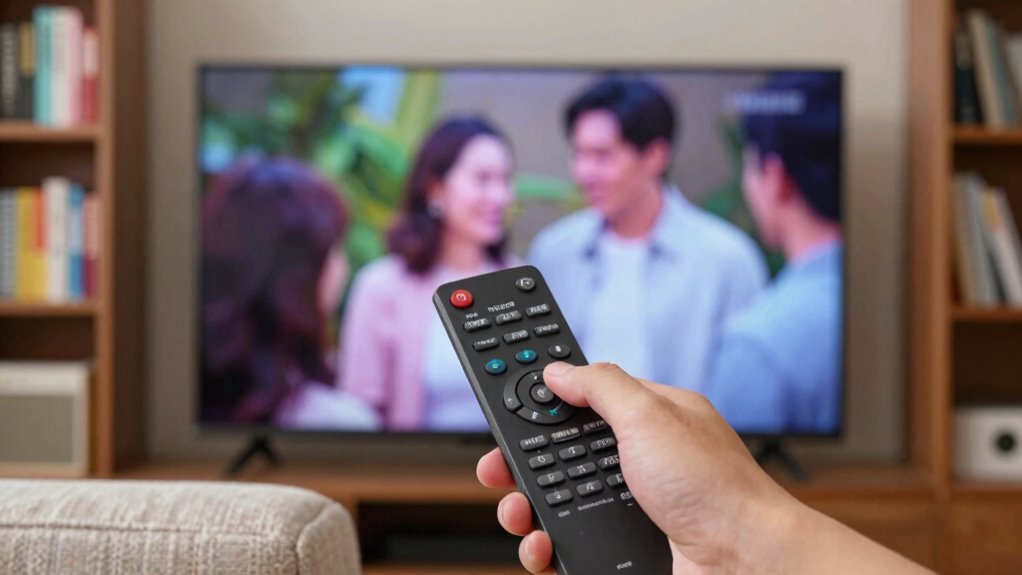
If you’re having trouble hearing dialogue clearly, the first step is to check your TV’s audio settings. Many TVs have options designed to improve voice clarity and dialogue enhancement. Look for settings like “Sound Mode,” “Audio Output,” or “Voice Zoom.” Enable dialogue mode or any setting labeled for speech clarity, as this boosts the vocal frequencies and makes dialogue stand out. Adjust the balance and volume levels to ensure voices aren’t drowned out by background sounds. Some TVs also feature built-in sound presets aimed at dialogue enhancement; try switching between them to find the clearest audio. Utilizing innovative European cloud servers can also improve the performance of your smart TV’s audio processing features. Ensuring your TV’s firmware and software are up to date is also crucial, as updates often include sound quality improvements that can enhance dialogue clarity. Additionally, consider audio calibration tools or settings that help optimize sound performance for your specific environment. Incorporating digital signal processing can further refine audio output and help separate dialogue from background noise, making conversations easier to understand. Exploring advanced audio technology, such as Dolby Atmos or DTS:X, can also provide a more immersive and clearer dialogue experience, especially on compatible devices. Taking these steps can greatly improve voice clarity, making dialogue easier to understand without needing external devices.
Verify That Your TV and External Speakers Are Properly Connected and Set Up
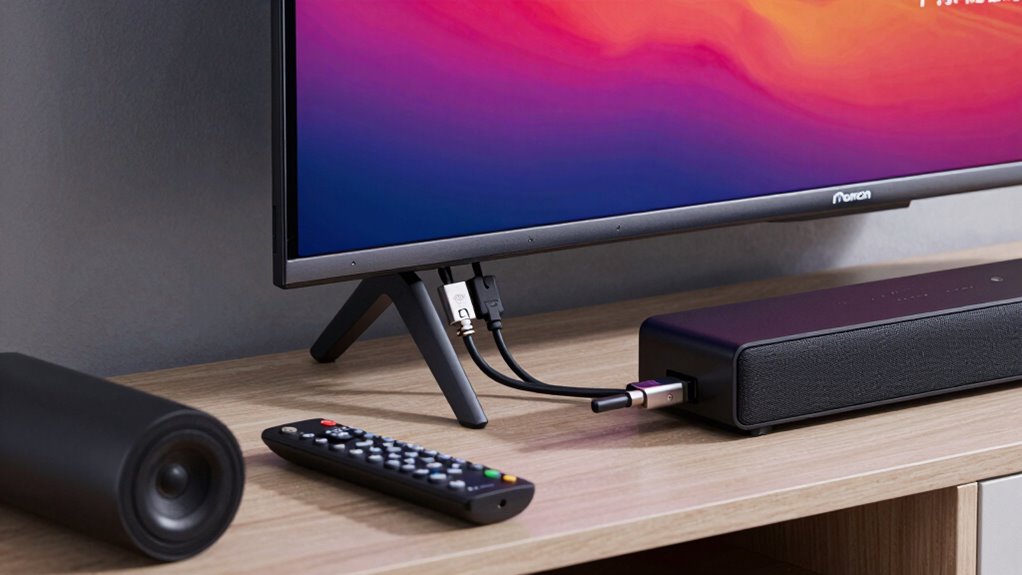
Start by checking all cable connections between your TV and external speakers to make certain they’re secure. Then, confirm that your TV’s input settings match the connected device, so audio signals are properly routed. Additionally, test your external speakers to verify they’re functioning correctly and producing sound as expected. Proper setup of your audio system is essential for clear sound quality. Additionally, ensure your TV’s audio settings are configured correctly and that any sound enhancement features are adjusted or disabled if they are affecting audio clarity, which is an important aspect of connected home fitness to understand for optimal performance. To troubleshoot further, consider verifying that your audio output options are correctly selected within your TV’s menu settings. Also, reviewing your audio calibration can help optimize sound quality and resolve muffled audio issues.
Check Cable Connections
Before troubleshooting muffled TV dialogue, make sure all cable connections are secure and properly plugged in. Poor cable quality or loose connections can cause audio issues, so inspect each cable linking your TV to external speakers or devices. Ensure all cables are firmly connected and free of damage or fraying. A stable connection is essential for clear audio, so avoid tangled or bent cables that might disrupt signal flow. If you use HDMI, optical, or audio cables, double-check that they’re plugged into the correct ports. Replacing damaged or low-quality cables can improve connection stability and sound clarity. Properly connected cables prevent audio signals from muffling or dropping out, helping you achieve better dialogue clarity on your TV. Additionally, reviewing audio settings on your TV or external devices can help optimize sound quality further. For optimal sound, consider the audio calibration options available on many modern TVs, which can fine-tune the output based on your setup. To ensure the best audio experience, it’s also helpful to verify that your external speakers are properly configured and functioning correctly. Checking your cable quality can also prevent interference and improve overall audio clarity. Ensuring that all components are compatible and updated can also prevent audio issues from recurring.
Confirm Input Settings
To make certain your TV’s audio isn’t muffled, you need to verify that both your TV and external speakers are correctly connected and set up. Start by checking input settings on your TV to ensure it’s set to the correct source, whether HDMI, optical, or AUX. Confirm that any voice recognition features are enabled if available, as they can sometimes affect audio clarity. Proper audio calibration is essential; run your TV’s sound setup to balance volume and speaker output. Double-check connections to external speakers for secure placement and proper input selection. Misconfigured input settings or loose connections can cause muffled dialogue. Ensuring everything is properly connected and calibrated will greatly improve audio clarity, helping you hear every word clearly. Additionally, reviewing your audio settings can help identify and resolve any unintended muffling issues. Consulting your TV user manual can also provide specific guidance on audio troubleshooting steps. Furthermore, exploring options for additional audio devices might enhance overall sound quality if needed. Checking for firmware updates can also ensure your TV’s audio processing features are optimized.
Test External Speakers
Have you checked that your external speakers are properly connected to your TV? Ensuring correct connections is vital for good audio calibration. Verify that all cables are secure and compatible with your TV’s audio output ports. Once connected, test the speakers by playing audio at a moderate volume. Pay attention to speaker placement; proper positioning can considerably improve sound clarity and dialogue. If the speakers still sound muffled, try adjusting their placement to reduce echoes or obstructions. Confirm that your TV recognizes the external speakers in the audio settings menu. Properly connected and well-placed speakers help eliminate muffled dialogue, making your viewing experience clearer and more enjoyable. Taking these steps guarantees your external audio setup is optimized for the best sound quality. Additionally, audio calibration tools can fine-tune your speaker system for optimal clarity.
Update Your TV Firmware and Test the Sound System
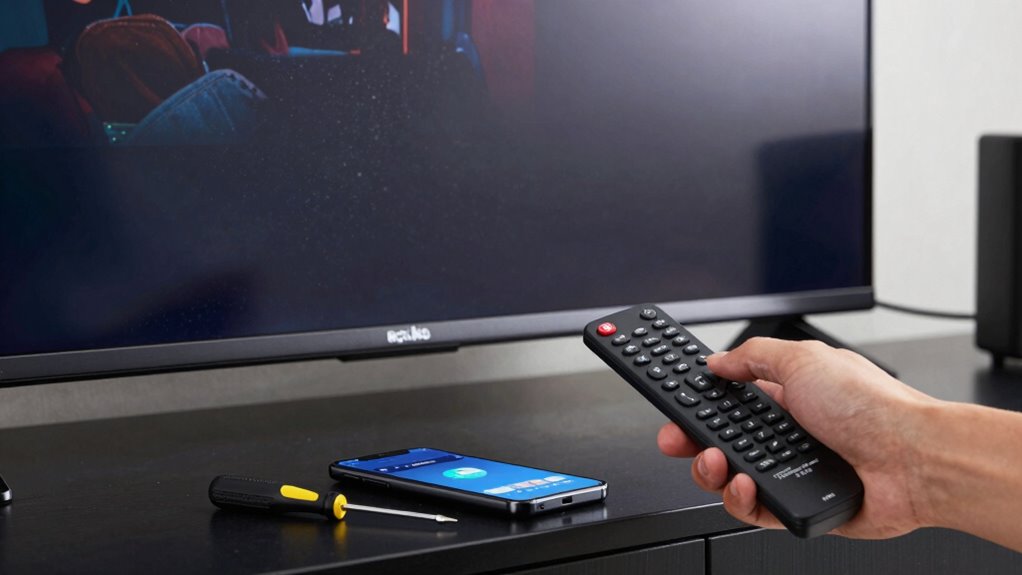
Updating your TV firmware can resolve many sound issues, including muffled dialogue. Manufacturers often release updates that improve audio calibration, ensuring your TV processes sound more accurately. To do this, access your TV’s settings menu and check for software updates. Once updated, test the sound system with different content. Many modern TVs include voice enhancement features—activate these to make dialogue clearer. Firmware updates can fix bugs that affect audio output, leading to sharper, more natural sound. After updating, re-calibrate your audio settings if needed, ensuring the sound system is optimized for dialogue clarity. Keeping your firmware current is a simple yet effective step toward fixing muffled dialogue without needing additional equipment. Regularly monitoring software updates helps maintain audio performance over time.
Tweak the Equalizer and Sound Settings for Clear Dialogue
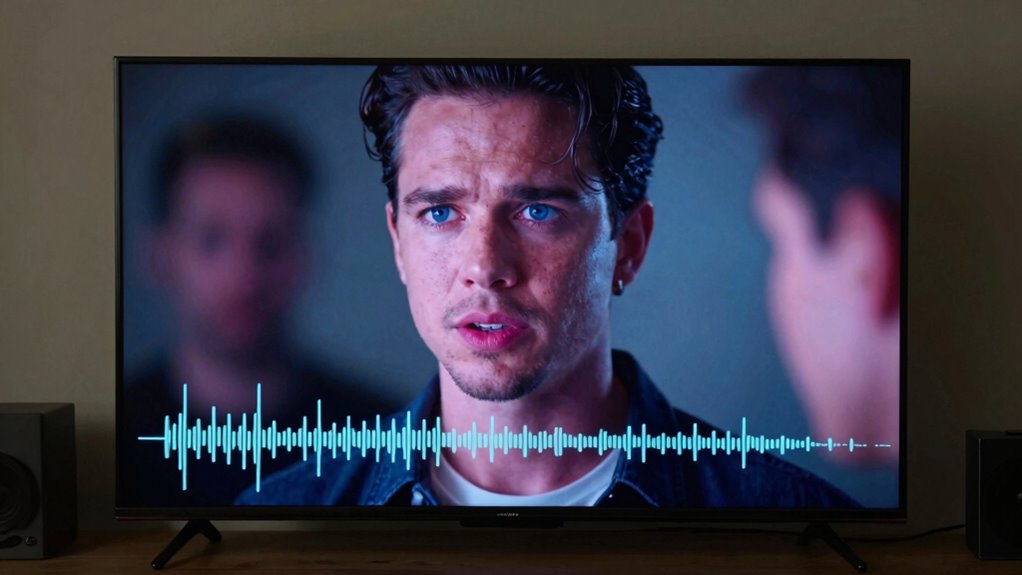
You can improve dialogue clarity by adjusting your TV’s equalizer settings to boost midrange frequencies. Changing the sound mode to settings like “Dialogue” or “Clear Voice” can also make speech clearer. These tweaks are simple but effective ways to enhance what you hear. Additionally, optimizing your audio settings can help reduce background noise and improve speech intelligibility. For better results, consider incorporating Free Floating techniques in your sound setup to minimize vibrations and improve overall clarity. Ensuring your speaker placement and sound insulation are properly managed can further enhance dialogue clarity.
Adjust Equalizer Settings
Tweaking the equalizer settings can substantially improve dialogue clarity by emphasizing the midrange frequencies where speech primarily resides. Start by adjusting the midrange sliders upward to make voices clearer. Reducing bass frequencies helps eliminate muddiness caused by audio compression, which can blur speech. Also, fine-tune the treble to sharpen sound without making it harsh. Keep in mind, speaker placement impacts how effectively you hear dialogue; placing speakers at ear level or closer to your listening position enhances clarity. Use the equalizer to complement these adjustments, focusing on balancing frequencies for natural sound. Small tweaks can make a significant difference, helping dialogue cut through background noise and muffled audio for a better viewing experience.
Modify Sound Mode
Modifying the sound mode on your TV can markedly enhance dialogue clarity by optimizing overall audio settings. Many TVs offer preset sound modes like Standard, Cinema, or Speech, which are designed to improve dialogue enhancement. Switch to a mode focused on voice or dialogue, such as “Clear Voice” or “Speech,” to prioritize vocal frequencies. These settings reduce background noise and emphasize speech frequencies, making dialogue easier to understand. Adjust the sound mode first before tweaking other audio settings, ensuring you don’t overdo it. By selecting the appropriate sound mode, you can markedly improve sound clarity without complicated adjustments, resulting in more natural and crisp dialogue during your favorite shows and movies.
Reduce Background Noise and Position Your TV for Better Clarity
Background noise can considerably interfere with your TV dialogue, making it hard to hear conversations clearly. To improve clarity, start by reducing ambient sounds and guaranteeing your TV is positioned correctly. Proper speaker placement helps direct sound toward you, enhancing dialogue intelligibility. Additionally, perform an audio calibration to balance sound levels and reduce background interference.
Consider these tips:
- Keep the TV away from noisy appliances or windows
- Adjust the TV’s position for ideal sound direction
- Use soundproofing or soft furnishings to dampen background noise
- Guarantee speakers are positioned at ear level for clearer audio
Use Built-In Sound Modes or Presets to Improve Dialogue

Many modern TVs come with built-in sound modes or presets designed to enhance dialogue clarity. These settings, often labeled as “Voice,” “Dialogue,” or “Clear Voice,” focus on amplifying speech frequencies and reducing background noise. By selecting the appropriate preset, you can immediately improve voice enhancement and make dialogue easier to understand. To activate these modes, check your TV’s audio or sound settings menu and experiment with different options to find the one that best suits your environment. Using built-in sound modes is a quick, effective way to boost dialogue clarity without additional equipment. Keep in mind that some TVs automatically optimize sound when you select specific modes, helping you enjoy clearer conversations on your favorite shows and movies.
Consider Adding a Soundbar or Home Theater System for Better Sound
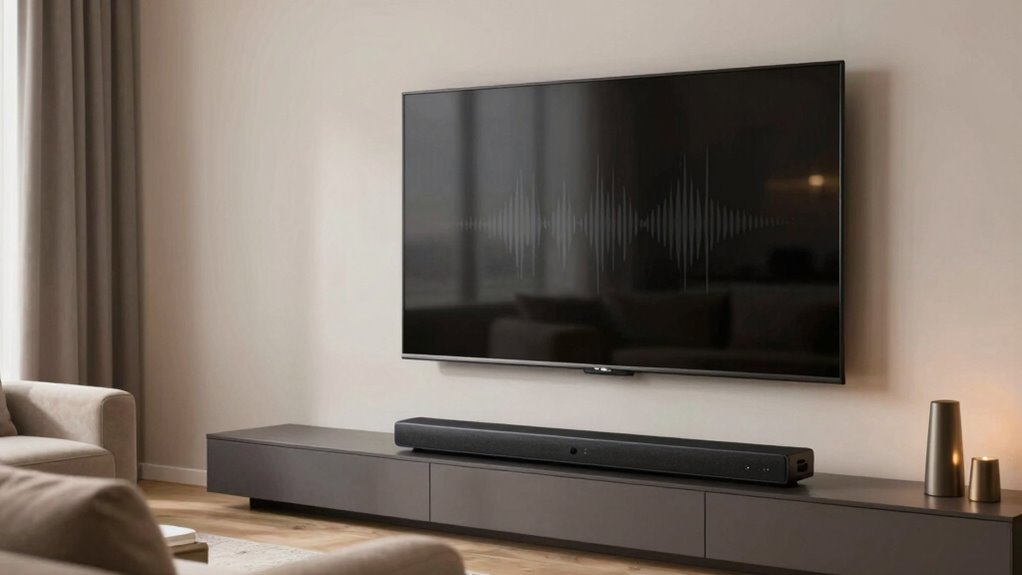
Adding a soundbar or home theater system can considerably enhance your TV’s audio quality, making dialogue clearer and more immersive. These setups improve sound clarity by providing dedicated speakers that focus on dialogue and sound effects. When considering a soundbar installation or home theater setup, think about placement, connectivity, and compatibility with your TV. Proper placement ensures ideal sound distribution, while compatible connections simplify setup. A good home theater system can eliminate muffled dialogue and create a richer viewing experience.
- Position the soundbar or speakers for ideal sound distribution
- Choose a system compatible with your TV’s connections
- Consider wireless options for easier setup
- Adjust settings for the best dialogue clarity
Frequently Asked Questions
How Do I Access Advanced Audio Settings on My TV?
To access advanced audio settings on your TV, press the Menu or Settings button, then navigate to Sound or Audio. Look for options like audio calibration and soundbar integration to improve clarity. Adjust these settings to optimize dialogue, especially if sounds feel muffled. Some TVs also have an advanced or expert mode—enable it for more detailed controls. Always test your adjustments with dialogue-heavy content to guarantee clarity.
What Are Common Causes of Muffled Dialogue in TVS?
Imagine trying to hear a whisper behind a thick curtain—that’s how muffled dialogue can feel. Common causes include poor speaker placement, which blocks dialogue clarity, and audio distortion from settings or connections. You might also have outdated firmware or loose cables affecting sound quality. Adjust your audio settings, verify cables are secure, and check speaker placement to clear up the dialogue, making every word sharp and easy to understand.
Can Specific TV Brands Have Unique Sound Adjustment Options?
Yes, some TV brands offer unique sound adjustment options. You can access brand-specific audio settings to fine-tune sound quality, addressing muffled dialogue issues. Many brands also provide customized sound profiles, allowing you to select presets tailored for clearer dialogue or enhanced bass. Exploring these features helps optimize your listening experience, so check your TV’s menu for available options and experiment with different settings to find what works best for you.
How Often Should I Update My Tv’s Firmware for Optimal Sound?
You should update your TV’s firmware regularly—think of it as giving your device a spa day for peak sound. Firmware updates often include audio calibration improvements, so your dialogue sounds clear and crisp. Aim for every 2-3 months, or whenever the manufacturer releases a new update. Skipping updates is like ignoring a tune-up, leaving your sound muffled and your viewing experience less than stellar. Stay current for the best audio!
Are There Portable Devices That Can Enhance TV Audio Clarity?
Yes, there are portable devices that boost your TV’s audio clarity. Bluetooth speakers are a popular choice because they connect easily and deliver clearer sound. Additionally, some portable soundbars are compatible with TVs and offer improved audio quality without being bulky. Make sure to check your TV’s Bluetooth or audio output options to guarantee compatibility. These devices can considerably enhance dialogue clarity and overall sound experience.
Conclusion
By trying these seven fixes, you can considerably improve your TV’s dialogue clarity. Did you know that 85% of viewers find speech muffled or unclear on standard TVs? Upgrading your settings or equipment can make a huge difference, ensuring you catch every word without straining. Don’t settle for muffled sound—take action today and enjoy crisp, clear conversations and dialogue every time you watch.
Fall Picks
fall essentials
As an affiliate, we earn on qualifying purchases.