
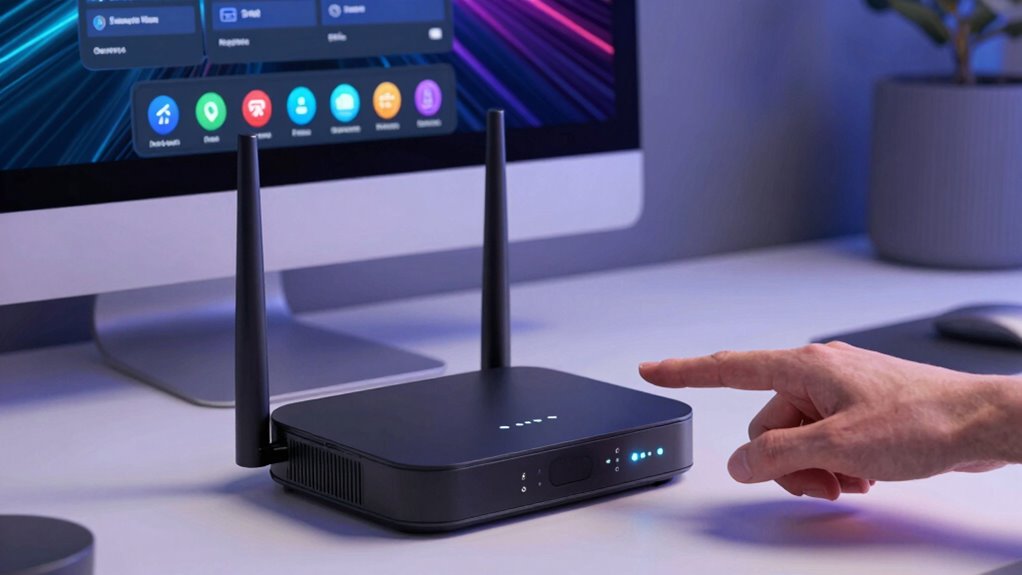

To improve video call captions, start by updating your router’s firmware and enabling Quality of Service (QoS) to prioritize call traffic. Use a dual-band router on 2.4 GHz and 5 GHz bands for better performance and switch to less crowded Wi-Fi channels. Position your router centrally and limit background activities during calls to reduce interference and bandwidth issues. Keep exploring for more tips to optimize your network and guarantee smoother, more accurate captions.

Get everyday helpers delivered free with Prime
- Fast, free delivery on millions of items
- Prime Video, Amazon Music and more included
- Member-only deals all year
Key Takeaways
- Enable Quality of Service (QoS) to prioritize video call traffic for better caption synchronization.
- Use a dual-band router and switch to the 5 GHz band to reduce interference and improve connection stability.
- Position the router centrally and away from interference sources like microwaves for optimal signal strength.
- Regularly update router firmware to fix bugs and enhance performance for real-time caption accuracy.
- Limit background activities and bandwidth-heavy applications during calls to ensure smooth caption display.
As an affiliate, we earn on qualifying purchases.
Why Your Router Quality Might Be Causing Caption Lag

If your video call captions are lagging, your router’s quality could be be the culprit. One key factor is the router frequency; a dual-band router operating on 2.4 GHz and 5 GHz bands offers better performance than single-band models. The right frequency can reduce interference and improve connection stability. Signal strength also plays a vital role—weak signals lead to inconsistent data transmission, causing caption delays. If your router’s signal strength is low, your device struggles to receive the necessary data in real-time, resulting in lagging captions. Upgrading to a higher-quality router with better frequency options and stronger signal output can markedly enhance your connection. This, in turn, minimizes lag, ensuring captions appear smoothly and in sync with your conversation. Understanding internet fundamentals can help you choose the best router features for optimal video call performance. Additionally, network security settings can impact overall connection quality, so configuring your router properly can further improve your experience. For example, enabling Quality of Service (QoS) settings prioritizes video call traffic, which can help reduce caption lag. Implementing router firmware updates can also enhance performance and stability, further reducing lag issues. Regularly checking your wireless channel can prevent interference from nearby networks and maintain optimal connection quality.
How to Diagnose If Network Issues Are Affecting Your Captions
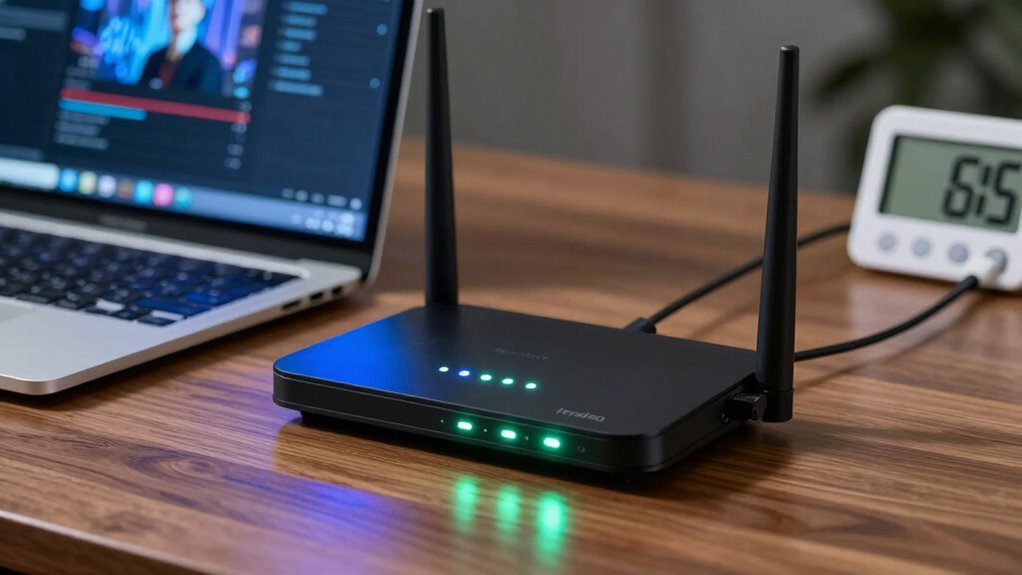
To determine if network issues are causing your caption delays, start by monitoring your connection’s stability during video calls. Conduct basic network diagnostics by checking your internet speed and latency with tools like Speedtest. Consistent lag or buffering may indicate bandwidth problems affecting caption troubleshooting. Use this table to identify common issues:
| Symptom | Possible Cause |
|---|---|
| Caption lag or dropout | Slow internet speed or high latency |
| Video buffering | Network congestion |
| Unstable connection | Weak Wi-Fi signal |
| Frequent disconnections | Router interference or overload |
| Delayed caption display | Packet loss or bandwidth issues |
A strong resale value for electric bikes, such as KTM models, can also impact the overall network load if multiple devices are connected, potentially affecting video call performance. Additionally, ensuring your home network is properly configured can help maintain stable connections and improve caption accuracy. Regularly updating your router’s firmware and managing connected devices can reduce network interference and enhance overall stability. Furthermore, optimizing your network settings for video conferencing can further improve caption reliability, especially in environments where Free Floating factors influence network performance.
Easy Ways to Manage Bandwidth and Reduce Wireless Interference
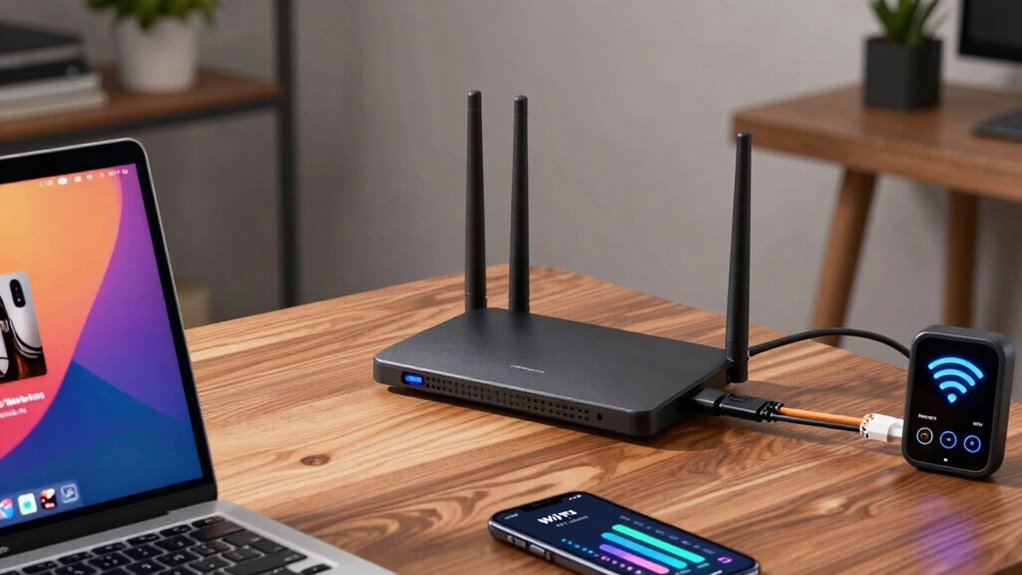
Managing your bandwidth and reducing wireless interference are essential steps to guarantee smooth video call captions. Effective bandwidth management involves limiting background activities, such as downloads or streaming, that consume significant data. Prioritize your video calls by assigning them higher bandwidth or using Quality of Service (QoS) settings if available. To diminish interference, position your router centrally and away from electronics like microwaves or cordless phones. Switching to a less crowded Wi-Fi channel can also minimize interference, especially on the 2.4 GHz band. Consider upgrading to dual-band or mesh networks for a more stable connection. Eliminating sources of interference and managing bandwidth effectively ensure your video call captions stay synchronized and clear, providing a better overall experience. Understanding heat distribution and how it affects signal stability can help optimize your setup further, as uneven heat can impact electronic device performance and signal strength.
Boost Caption Sync by Enabling QoS and Updating Firmware
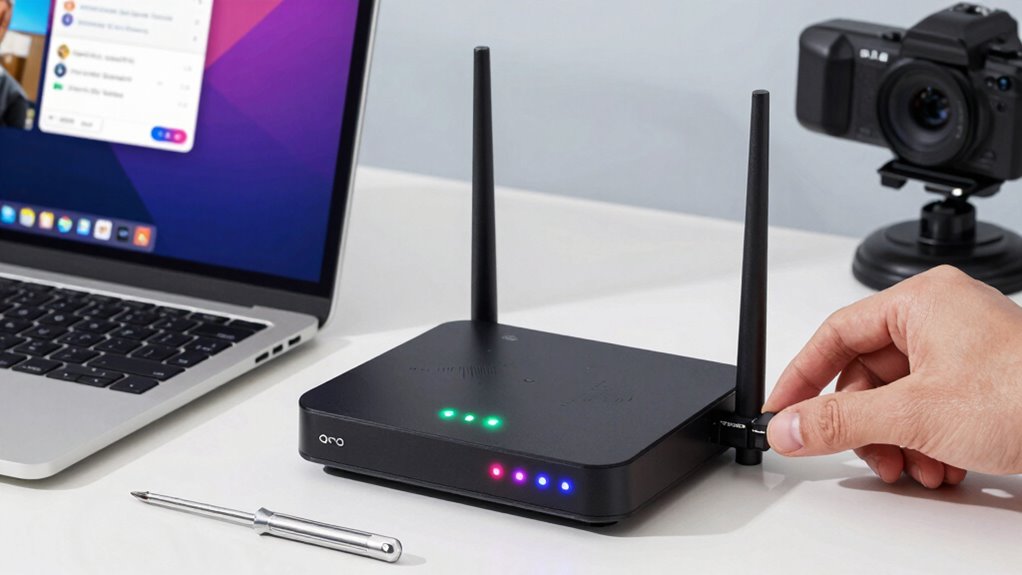
Enabling Quality of Service (QoS) on your router prioritizes video call traffic, which helps keep captions synchronized and reduces lag. This bandwidth management technique guarantees your device’s video calls get the necessary network resources, improving overall caption accuracy. Additionally, regularly updating your firmware keeps your router functioning at its best by fixing bugs and enhancing performance. Outdated firmware can cause network instability, negatively affecting caption sync. To maximize these benefits, configure QoS settings to prioritize video streaming devices and update firmware promptly. Here’s a quick overview:
| Setting | Benefit | Action Needed |
|---|---|---|
| QoS Activation | Prioritizes video call traffic | Enable QoS in your router |
| Bandwidth Management | Ensures sufficient bandwidth for calls | Allocate bandwidth for video apps |
| Firmware Updates | Fixes bugs, enhances stability | Check and install latest firmware |
| Caption Sync | Improves real-time caption accuracy | Implement QoS and update firmware |
Additionally, understanding network stability can help you troubleshoot and maintain optimal caption synchronization during calls. Regularly monitoring your internet connection quality can prevent interruptions that disrupt caption timing, especially when combined with router configuration adjustments. For best results, consider performing a speed test periodically to ensure your connection remains strong and consistent.
Final Tips to Optimize Your Network for Smoother, Clearer Captions
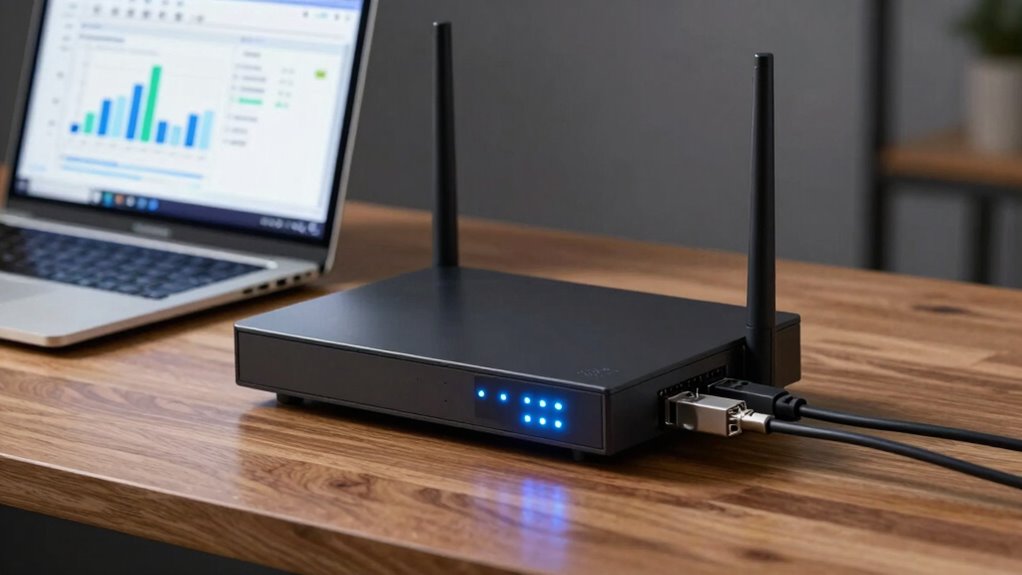
Ensuring your network runs smoothly is essential for getting clearer, more reliable captions during video calls. To improve caption accuracy, prioritize reducing network congestion by limiting bandwidth-heavy activities during calls. Connect your device directly to the router with an Ethernet cable when possible, as wired connections offer more stability than Wi-Fi. Also, consider upgrading your router’s firmware to guarantee peak performance. Avoid multiple devices streaming or downloading simultaneously, which can cause lag and distort captions. Enable Quality of Service (QoS) features to prioritize video call traffic. Regularly restart your router to clear temporary issues. Additionally, managing your network’s bandwidth allocation can help prevent congestion during critical calls. Being aware of potential interference sources, such as other wireless devices, can further improve connection stability and caption clarity. Understanding how network congestion impacts data transmission can help you take proactive steps to maintain a steady connection, minimizing disruptions and ensuring captions are as accurate and clear as possible. Implementing a reliable network infrastructure can also significantly enhance overall call quality. For optimal results, consider conducting a network speed test to identify and address any underlying issues affecting your connection.
Frequently Asked Questions
Can Changing My Router’s DNS Settings Improve Caption Synchronization?
Changing your router’s DNS settings can help improve caption synchronization by reducing latency, especially if you choose DNS optimization options like Google DNS or Cloudflare. Additionally, keeping your router’s firmware updated guarantees peak performance and stability during calls. These adjustments can minimize delays, making captions appear more synchronized with your video, resulting in a smoother, more accurate viewing experience.
How Does Enabling Guest Networks Affect Video Call Caption Quality?
Enabling a guest network can impact your video call captions by dividing bandwidth allocation, which might cause lag or interruptions. Guest networks often have limited bandwidth, so if many devices connect, your call quality and caption synchronization could suffer. To minimize this, prioritize bandwidth for your main device or limit the number of devices on the guest network, ensuring your video calls maintain clear captions and smooth audio.
Are There Specific Router Brands Optimized for Caption Accuracy?
Some router brands, like Asus and Netgear, are known for better compatibility with devices supporting caption accuracy. You should choose models that receive regular device firmware updates, ensuring peak performance and bug fixes. Keeping your router’s firmware current can improve overall connection stability and data transfer, which directly benefits caption clarity during calls. Always check for compatibility with your devices when selecting a router brand to maximize caption quality.
What Security Settings Might Interfere With Caption Data Transmission?
Did you know that over 70% of network issues stem from security settings? If your network encryption is too strict or your firewall configuration blocks certain ports, it can interfere with caption data transmission during video calls. These security measures, while protecting your data, might inadvertently hinder caption accuracy. To keep captions flowing smoothly, verify your security settings permit necessary traffic without compromising your network’s safety.
Is It Better to Use Wired or Wireless Connections for Clearer Captions?
Using a wired connection typically provides clearer captions because it reduces network congestion and signal interference, which can cause lag and disruptions. With a wired setup, your connection remains stable and consistent, ensuring your video call captions stay accurate and timely. Wireless connections are more vulnerable to interference from other devices, making wired options the better choice for the clearest captions and smooth communication.
Conclusion
By tweaking your router settings, you can substantially improve your video call captions. Don’t worry if you’re not tech-savvy—simple steps like updating firmware or managing bandwidth make a big difference. Even if your internet isn’t perfect, these tips can help reduce lag and syncing issues. Take control now, and enjoy clearer, more accurate captions without needing costly upgrades. Your calls will be smoother, and understanding will be easier—no tech expertise required!
Columbus Day / Indigenous Peoples' Day Picks
long weekend sales
As an affiliate, we earn on qualifying purchases.