Have you ever considered how easy it is for Resound hearing aids to connect with your iPhone in just three simple steps?
The process may seem daunting at first, but with the right guidance, it becomes a breeze.
By following these simple instructions, you can effortlessly connect your hearing aids to your iPhone and unlock a world of possibilities.
Key Takeaways
- Activate Bluetooth on both devices for seamless connectivity.
- Pair ReSound hearing aids with iPhone through Bluetooth settings.
- Ensure successful connection by testing audio output and volume adjustment.
- Utilize ReSound customer support for troubleshooting and optimizing functionality.

Vivtone Bluetooth Hearing Aids with APP Control for Precise Fitting, Phone Call & Music Streaming, Rechargeable OTC Hearing Aids for Seniors Adults Men Women, Xpure 2.0
- Bluetooth Phone Calls & Music: Stream calls and music wirelessly
- High-Quality Sound: Minimizes distortion and feedback
- Customizable Sound Settings: Adjust volume and frequency easily
As an affiliate, we earn on qualifying purchases.
As an affiliate, we earn on qualifying purchases.
Checking Compatibility and Software Updates
When pairing Resound hearing aids with an iPhone, the first step is to ensure compatibility and check for any necessary software updates. It's crucial to verify that your specific model of ReSound hearing aids is compatible with your iPhone to guarantee a smooth pairing process. Additionally, checking for firmware updates for your ReSound hearing aids is essential to optimize their performance and ensure they work seamlessly with your iPhone.
Ensuring that the iOS version on your iPhone supports the ReSound hearing aids is also crucial for successful connectivity. If you encounter any compatibility issues during the pairing process, reaching out to ReSound customer support for troubleshooting assistance is recommended. They can provide guidance and solutions to help resolve any issues you may face.
If persistent challenges arise with pairing your ReSound hearing aids with your iPhone, exploring alternative connectivity options may be necessary. By following these steps and staying informed about compatibility and software updates, you can enhance your experience with your ReSound hearing aids and iPhone connectivity.
Activating Bluetooth and Pairing Devices
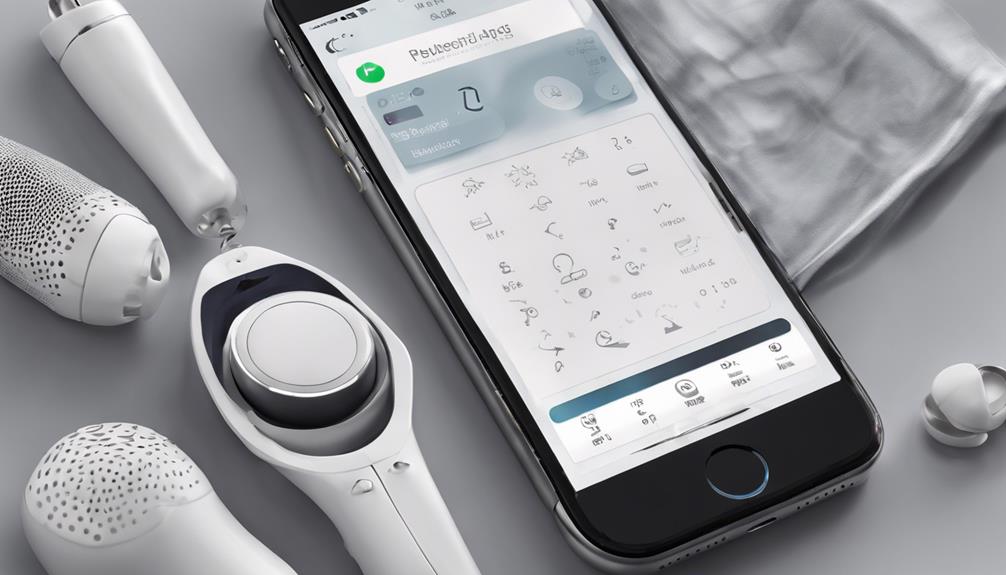
To establish a wireless connection between the ReSound hearing aids and the iPhone, activate Bluetooth on both devices and proceed to pair them in the settings menu.
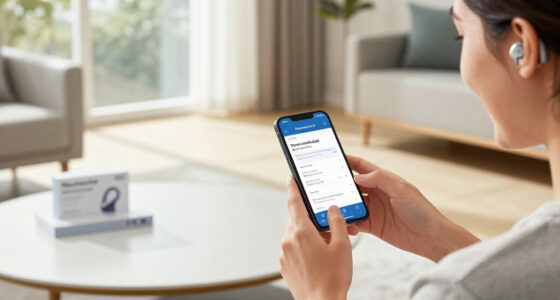
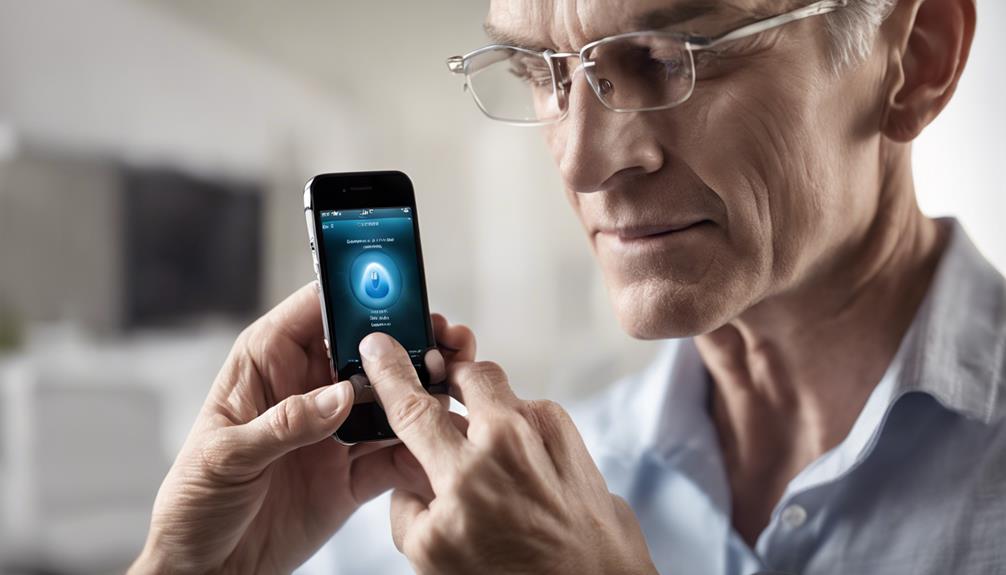
Begin by enabling Bluetooth on the ReSound hearing aids and the iPhone. Then, navigate to the Bluetooth settings on the iPhone and search for available devices. When the ReSound hearing aids appear in the list of devices, select them to initiate the pairing process.
Follow any on-screen instructions that may appear on the iPhone to successfully pair the devices. Once the pairing is complete, confirm the successful connection by testing it.
Adjust settings on the iPhone to control the ReSound hearing aids effectively.
Adjusting Settings and Testing Connection
Adjusting settings and testing the connection is crucial to ensure the seamless functionality of the paired ReSound hearing aids and iPhone. After successfully completing the pairing process between the MFi hearing aids and the iPhone or iPad, it's essential to verify that the devices are connected.
Begin by ensuring that the ReSound hearing aids are powered on and in pairing mode. Access the Bluetooth settings on your iPhone and search for the ReSound hearing aids to start the pairing process. Once the devices are detected, tap on them to establish the connection. Follow any on-screen instructions provided for successful pairing.
To test the connection, play audio on your iPhone and adjust the volume using the phone to confirm the link between the devices. Verify the successful pairing by checking the Bluetooth settings and ensuring that sound output is coming through the ReSound hearing aids. This thorough process guarantees that your MFi hearing aids are correctly connected to your iPhone for optimal performance.
Frequently Asked Questions
How Do I Pair My Resound Hearing Aid to My Iphone?
To pair your Resound hearing aid with your iPhone, follow these simple steps:
- Open the hearing aid battery door to activate pairing mode.
- Go to iPhone settings, turn on Bluetooth, and select the hearing aids from the Bluetooth list.
- Follow the on-screen instructions for seamless pairing.
- Confirm the connection status on both devices for successful pairing.
These steps ensure a smooth process for connecting your Resound hearing aid to your iPhone.
Why Is My Resound Hearing Aid Not Connecting to Bluetooth?
Our Resound hearing aids mightn't connect to Bluetooth due to various reasons. Ensure Bluetooth is on for both devices, check for firmware updates, and keep devices within range.
Restarting aids and iPhone can help troubleshoot. If issues persist, contacting Resound customer support for further assistance is recommended.
Following these steps can help address Bluetooth connectivity problems with Resound hearing aids.
How Do I Make Sure My Hearing Aids Are in Pairing Mode?
Making sure our hearing aids are in pairing mode is crucial for a successful connection. To ensure this, follow the specific instructions provided by Resound for each type of hearing aid.
Look for the Bluetooth indicator or LED light on the devices to confirm they're in pairing mode. Remember, both hearing aids should be in pairing mode simultaneously for the connection to be established.
Double-checking these steps will help guarantee a smooth pairing process.
How Do You Reset Resound Hearing Aids?
When resetting ReSound hearing aids, we recommend the following steps:
- For non-rechargeable models, open and close the battery door.
- For rechargeable models, place the hearing aids in the charging case and close the lid for a few seconds.
This process can help resolve connectivity or performance issues. Always refer to the manufacturer's instructions for the specific model being used.
If problems persist, please contact ReSound customer support for further assistance.
Conclusion
In conclusion, pairing ReSound hearing aids with an iPhone in three simple steps enhances the user experience by allowing for seamless integration and digital control.
Did you know that 86% of ReSound hearing aid users reported improved hearing clarity and satisfaction when using their devices with an iPhone? This statistic highlights the effectiveness and convenience of this technology for those with hearing loss.
Experience the benefits of connectivity and personalized settings by pairing your ReSound hearing aids with your iPhone today.