

Adjusting your screen to high-contrast settings can make the content much easier to see by increasing the difference between text and backgrounds. This reduces eye strain, enhances readability, and helps if you have visual challenges. You can enable these settings on Windows, macOS, iOS, and Android devices with just a few taps or shortcuts. Exploring further will show you how to customize options for the best visibility and comfort.

Get everyday helpers delivered free with Prime
- Fast, free delivery on millions of items
- Prime Video, Amazon Music and more included
- Member-only deals all year
Key Takeaways
- Enable high-contrast modes on your device via settings or keyboard shortcuts to instantly improve screen visibility.
- Customize contrast themes and color combinations to enhance text readability and reduce visual fatigue.
- Adjust font size and style alongside contrast settings for sharper, more legible content.
- Reduce screen glare and reflections using anti-glare filters, proper lighting, and device positioning.
- Ensure software and applications support high-contrast features for consistent accessibility across platforms.
high contrast monitor screen filter
As an affiliate, we earn on qualifying purchases.
As an affiliate, we earn on qualifying purchases.
Why High-Contrast Settings Make Screen Reading Easier
Have you ever struggled to read text on your screen because of low contrast? High-contrast settings improve your color perception, making it easier to distinguish text from the background. When contrast is high, your eyes don’t have to work as hard to differentiate elements, which markedly boosts visual clarity. This adjustment can be especially beneficial for users with visual perception, helping to make digital content more accessible. When contrast is high, your eyes don’t have to work as hard to differentiate elements, which markedly boosts visual clarity. This is especially helpful if you have difficulty with color perception or experience eye strain. By increasing contrast, essential details stand out more sharply, reducing confusion and fatigue. Whether you’re reading long documents or browsing websites, high-contrast mode sharpens the visual distinction between text and background. This simple adjustment can make your screen easier to interpret, allowing you to focus better and interact more comfortably with your digital environment. Additionally, adjusting contrast can support innate creativity by reducing distractions caused by visual clutter, helping you concentrate on your tasks more effectively. Enhancing contrast can also improve visual perception skills, making it easier to process and understand complex visual information quickly. Incorporating high-contrast settings can also help reduce eye strain, especially during prolonged screen use, leading to a more comfortable viewing experience. Moreover, high-contrast settings can benefit users with visual perception difficulties, providing a clearer and more comfortable viewing experience.
How to Enable High-Contrast Mode on Windows
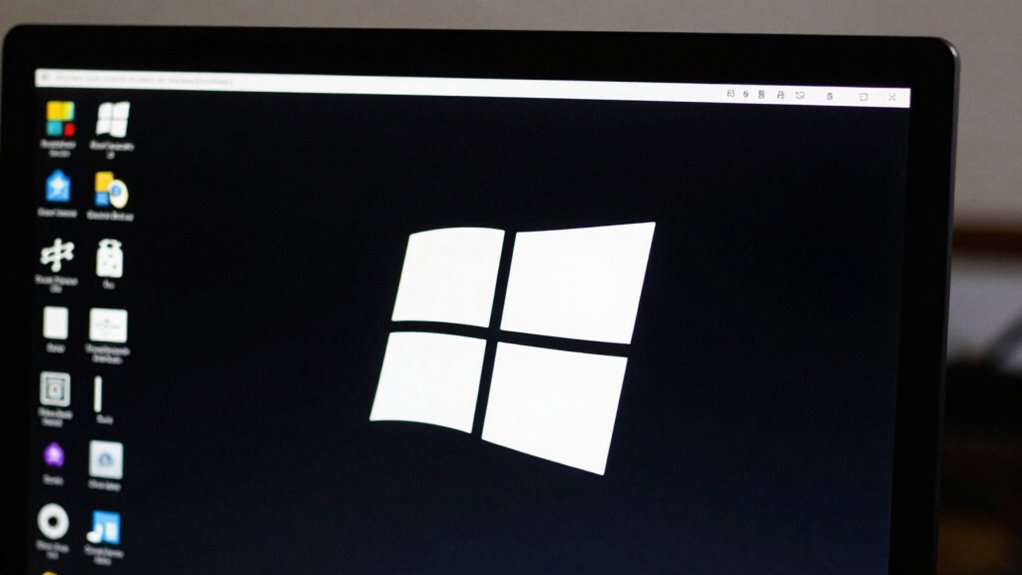
Enabling high-contrast mode on Windows is quick and improves accessibility. You can easily access this feature through your settings or by using a shortcut. Once activated, you can customize the theme to suit your preferences for better readability. Media literacy can help you better understand the information you see when using high-contrast settings, especially in relation to visual accessibility features. Incorporating environmental considerations like reducing screen glare can further enhance your viewing experience. Additionally, understanding how character development in media can influence perception may help users interpret visual cues more effectively. Recognizing design principles in high-contrast themes can also improve overall comprehension and comfort during prolonged screen use.
Access Ease of Use
To quickly turn on High-Contrast Mode on Windows, you can use a simple keyboard shortcut or access it through the Settings menu. This makes it easy to improve your color perception and enhance visual ergonomics whenever you need. Using the shortcut Windows key + Ctrl + C toggles the high-contrast theme on and off instantly, saving you time. Alternatively, you can go to Settings > Ease of Access > High contrast, and select a theme from the dropdown menu. This accessibility feature is designed for effortless use, ensuring that anyone can activate high-contrast visuals without hassle. By streamlining the process, Windows makes it simple to adjust your display for better visibility, especially when quick adjustments are necessary for comfortable viewing. Additionally, understanding how contrast ratio impacts image clarity can help you optimize your home cinema setup for the best viewing experience. Maintaining contrast levels appropriately can significantly enhance screen readability and reduce eye strain during prolonged use. Proper piercing care and hygiene practices also ensure that your accessories remain safe and comfortable during extended use.
Customize High-Contrast Theme
Once you’ve activated High-Contrast Mode, customizing the theme lets you tailor colors to your preferences for ideal readability. You can adjust the color palette to improve visibility and set a contrast ratio that makes text and backgrounds stand out clearly. To personalize your experience, go to the High-Contrast settings and select the “Choose a theme” option. Here’s a quick overview:
| Theme Name | Background Color | Text Color |
|---|---|---|
| Black on White | Black | White |
| White on Black | White | Black |
| Yellow on Blue | Yellow | Blue |
| Green on Black | Green | Black |
| Custom | Your choice | Your choice |
Adjust these settings to find the best contrast ratio and color palette for your eyes.
How to Activate High-Contrast on MacOS
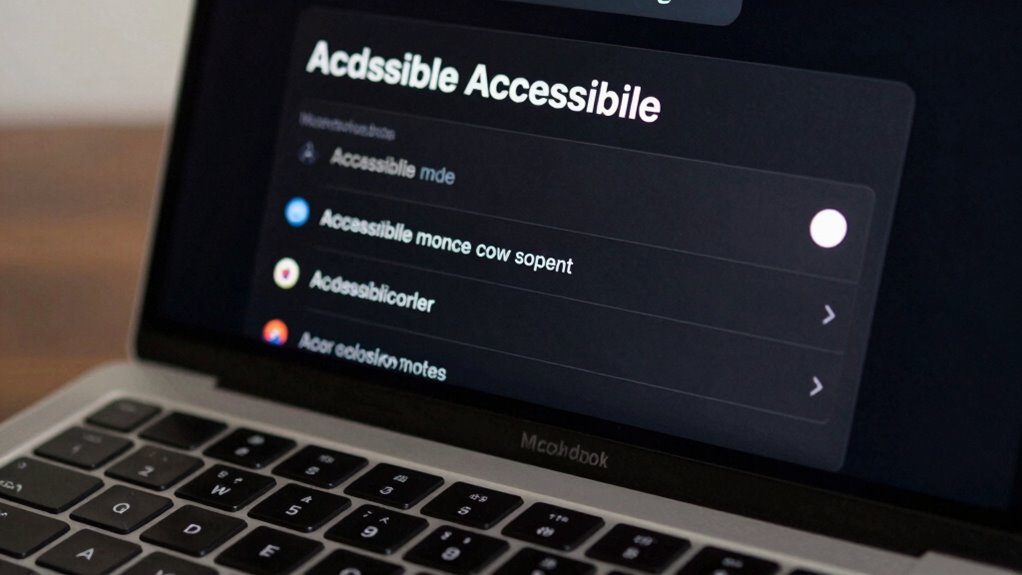
If you want to improve visibility and make text easier to read on your Mac, activating High-Contrast mode is a simple way to do it. This feature enhances color perception and sharpens visual cues, helping you distinguish elements more easily. To activate it, go to System Preferences > Accessibility. Then, select Display from the sidebar. Check the box next to “Increase contrast” to improve contrast between interface elements. For even more clarity, enable “Reduce transparency,” which minimizes visual effects that can interfere with readability. These adjustments can considerably boost your visual acuity, especially if you find typical displays challenging. Additionally, understanding the benefits of visual accessibility features can help you customize your device for optimal comfort. For example, high-contrast settings can be particularly beneficial for users with certain visual impairments, making the interface more distinct. Enabling these features can also help reduce visual strain during prolonged use. Incorporating screen contrast adjustment options can further tailor your display settings for better readability. Adjusting contrast settings can also support sustainable viewing habits, which are important for overall eye health. Once activated, High-Contrast mode makes the interface more distinct, reducing strain and helping you focus on what matters.
Turning On High-Contrast Features on iOS and Android Devices
Enhancing visibility on your mobile devices is straightforward with high-contrast features available on both iOS and Android. To improve color perception and meet accessibility standards, you can enable these features easily. On iOS, go to Settings > Accessibility > Display & Text Size, then toggle on “Increase Contrast” or “Dark Mode” for sharper visuals. On Android, navigate to Settings > Accessibility > Visibility Enhancements, and activate “High Contrast Text” or “Color Inversion” options. These settings adjust color schemes and contrast levels to make screens more distinguishable, especially for users with visual impairments. Turning on high-contrast features guarantees better readability and reduces eye strain, aligning your device’s display with accessibility standards for inclusive usability. Additionally, customizing these settings can help optimize device usage for individuals with specific visual needs.
Customizing High-Contrast Settings for Better Readability

Customizing high-contrast settings allows you to tailor your device’s display for maximum readability. By adjusting these settings, you improve your color perception and enhance visual acuity, making it easier to distinguish text and images. To optimize your experience, consider: 1. Choosing a color scheme with bold, distinct foreground and background colors to reduce eye strain. 2. Adjusting contrast levels to ensure text stands out clearly against the background. 3. Customizing font size and style for sharper, more legible characters. Additionally, selecting appropriate display settings can help you adapt your screen to various lighting conditions, further improving visibility. Properly contrast adjustment can also help reduce glare and improve overall screen clarity. These adjustments help you see details more accurately and reduce visual fatigue. Paying attention to visual comfort can also support sustained use and prevent eye strain during extended periods of screen time. Properly customized contrast can significantly enhance your overall viewing experience, especially in challenging lighting. Focusing on screen calibration ensures that your display settings are optimized for your specific environment and needs. Focus on creating a setup that aligns with your specific needs, ensuring that your screen’s display supports comfortable, long-term use. Proper customization makes a noticeable difference in overall readability.
Tips for Choosing Effective Contrast Colors and Combinations
Choosing effective contrast colors and combinations is essential for maximizing readability and reducing eye strain. Your goal is to select a color palette that clearly distinguishes text from backgrounds. Opt for high contrast, like black text on a white background or white text on a dark background. Avoid color pairings that blend or cause visual fatigue. Use contrast combinations that are simple yet impactful. Consider this table for ideas:
| Light Background | Dark Text |
|---|---|
| White | Black |
| Pale Yellow | Dark Blue |
| Light Gray | Charcoal |
| Dark Background | Light Text |
| Black | White |
| Navy Blue | Light Gray |
| Dark Green | Cream |
These contrast combinations help create an effective, accessible visual experience.
Troubleshooting Common Issues With High-Contrast Modes

High-contrast modes can markedly improve accessibility, but users often encounter common issues that hinder their effectiveness. One problem is inconsistent color perception, where some colors may still blend or appear unclear, reducing visibility. To fix this, try adjusting contrast settings or switching color schemes for clearer differentiation. Screen glare can also diminish the benefits of high-contrast modes, causing reflections that obscure text and images. You can reduce glare by repositioning your screen, using anti-glare filters, or adjusting ambient lighting. Ultimately, compatibility issues with certain applications may prevent high contrast from working properly. To troubleshoot, ensure your device’s software is updated, or try alternative accessibility tools. Addressing these issues helps maximize the clarity and usability of high-contrast settings.
Accessibility Benefits Beyond Visual Impairments

While high-contrast modes primarily support individuals with visual impairments, their benefits extend far beyond this group. Improved color perception helps users distinguish elements more easily, reducing confusion and enhancing overall readability. These settings can also decrease visual fatigue by minimizing glare and harsh contrasts that strain your eyes during prolonged screen use. Even if you don’t have a visual impairment, you might find high-contrast modes improve focus and comfort, especially in bright environments or under artificial lighting. By making screen content clearer and easier to process, high-contrast settings promote a more inclusive digital experience. You’ll notice less eye strain and fatigue, making your time on screens more comfortable and less tiring, regardless of your visual acuity.
Making Websites and Apps More High-Contrast Friendly

To make websites and apps more high-contrast friendly, focus on using clear color contrast between text and backgrounds. Simplifying navigation elements helps users find what they need quickly and reduces confusion. These steps create an accessible experience for everyone, especially those with visual impairments.
Clear Color Contrast
Have you ever struggled to read text on a website or app because the colors blend together? Clear color contrast enhances your ability to distinguish elements quickly. To improve contrast sensitivity and support better color perception, focus on these key points:
- Use high-contrast color combinations, like black on white or yellow on blue, to make text stand out.
- Avoid color pairs that are similar in hue and brightness, which can reduce contrast and make reading difficult.
- Test your design with contrast tools to ensure accessibility standards are met, especially for users with visual impairments.
Simplify Navigation Elements
Simplifying navigation elements is essential for creating websites and apps that are more accessible and user-friendly. Use clear, large font sizes to make menu options easy to read at a glance. Stick to high-contrast color schemes, such as dark text on a light background or vice versa, to boost visibility. Avoid cluttered layouts and complex menus; instead, streamline navigation with straightforward labels and simple icons. Consistent placement of navigation buttons helps users easily find their way without confusion. Incorporate sufficient spacing between elements to prevent accidental clicks. By focusing on these details, you make navigation intuitive for users with visual impairments or those who prefer high-contrast settings, ensuring everyone can access your content effortlessly.
Comparing Built-In and Third-Party High-Contrast Tools
When comparing built-in and third-party high-contrast tools, it’s important to take into account how each option addresses your accessibility needs. Built-in tools often adhere to accessibility standards and offer seamless integration with your device’s existing features. Third-party tools may provide more customizable options, such as unique color palettes, but can sometimes fall short of standard compliance. Consider these factors:
- Compatibility with your device’s operating system and adherence to accessibility standards.
- Customizability of color palette options to suit your preferences.
- Ease of use and ability to switch quickly between modes without disrupting workflow.
Ultimately, your choice depends on balancing compliance, personalization, and convenience to make screens easier to see effectively.
Frequently Asked Questions
Can High-Contrast Settings Help Users With Color Blindness?
Yes, high-contrast settings can markedly improve accessibility for users with color blindness. By increasing contrast sensitivity, these settings help distinguish elements on the screen more easily, reducing confusion caused by color limitations. You’ll find that adjusting contrast makes text and visuals clearer, enhancing overall usability. This simple change promotes better color blindness accessibility, ensuring that everyone can navigate and interpret content effectively without relying solely on color cues.
How Do High-Contrast Modes Impact Battery Life on Devices?
High-contrast modes can slightly increase energy consumption because they often require higher screen brightness and additional processing. When you activate these settings, your device might use more power, especially on OLED screens, which turn off pixels for black areas. To minimize battery drain, keep screen brightness lower when using high-contrast modes, and turn them off when not needed. This way, you balance visibility and energy efficiency effectively.
Are High-Contrast Settings Compatible With All Apps and Websites?
Did you know that over 85% of apps and websites support accessibility features? High-contrast settings are generally compatible with most screen color options, but some apps might not fully adapt, causing display issues. You’ll find that these settings improve visibility for many users, but it’s a good idea to test your favorite apps and websites to guarantee they work smoothly with your high-contrast mode.
Can I Customize High-Contrast Themes for Specific Tasks or Applications?
Yes, you can customize high-contrast themes for specific tasks or applications. Many operating systems and accessibility tools allow you to create custom themes, enabling task-specific customization. For example, you can set a high-contrast theme for your web browser or a particular app, making it easier to see what you’re working on. This way, you tailor the visual experience to suit your needs without affecting overall system settings.
Do High-Contrast Modes Affect the Visual Quality of Images and Videos?
High-contrast modes can affect the visual quality of images and videos by reducing image clarity and altering color accuracy. You might notice that details become less sharp, and colors appear less true to life. While these settings help make screens easier to see, they may compromise the overall quality of visual content. If you prioritize image fidelity, consider adjusting contrast levels or disabling high-contrast modes for viewing images and videos.
Conclusion
Now that you’ve unlocked high-contrast modes, your screen’s become a superhero—saving your eyes from villainous blurriness and glare. No more squinting into the abyss or blaming your aging eyesight; instead, enjoy a world where text pops like neon signs on a foggy night. With these settings, your device transforms into a beacon of clarity, making digital life easier—because who needs subtlety when you can have high-contrast heroism at your fingertips?
Halloween Picks
halloween
As an affiliate, we earn on qualifying purchases.